OpenPBR
OpenPBR is a surface shading model that is developed by the Academy Software Foundation as a standard for Computer graphics. The goal is to ensure accurate modeling of most computer graphic materials across different tools.
You can find the exact specification of OpenPBR here.
Base
Weight
The multiplier for the base color.
Color
This is the surface color and can be replaced by a texture.
Metalness
Controls the “metallicness” of the material. Increasing the value will produce a more metallic appearance.
Diffuse Roughness
This will add microscopic levels of imperfections to the surface of the material. When set to 0, the material will appear perfectly smooth and polished. When the value is increased, the material will appear rougher as light is diffused across the surface, creating a flatter and more porous look.
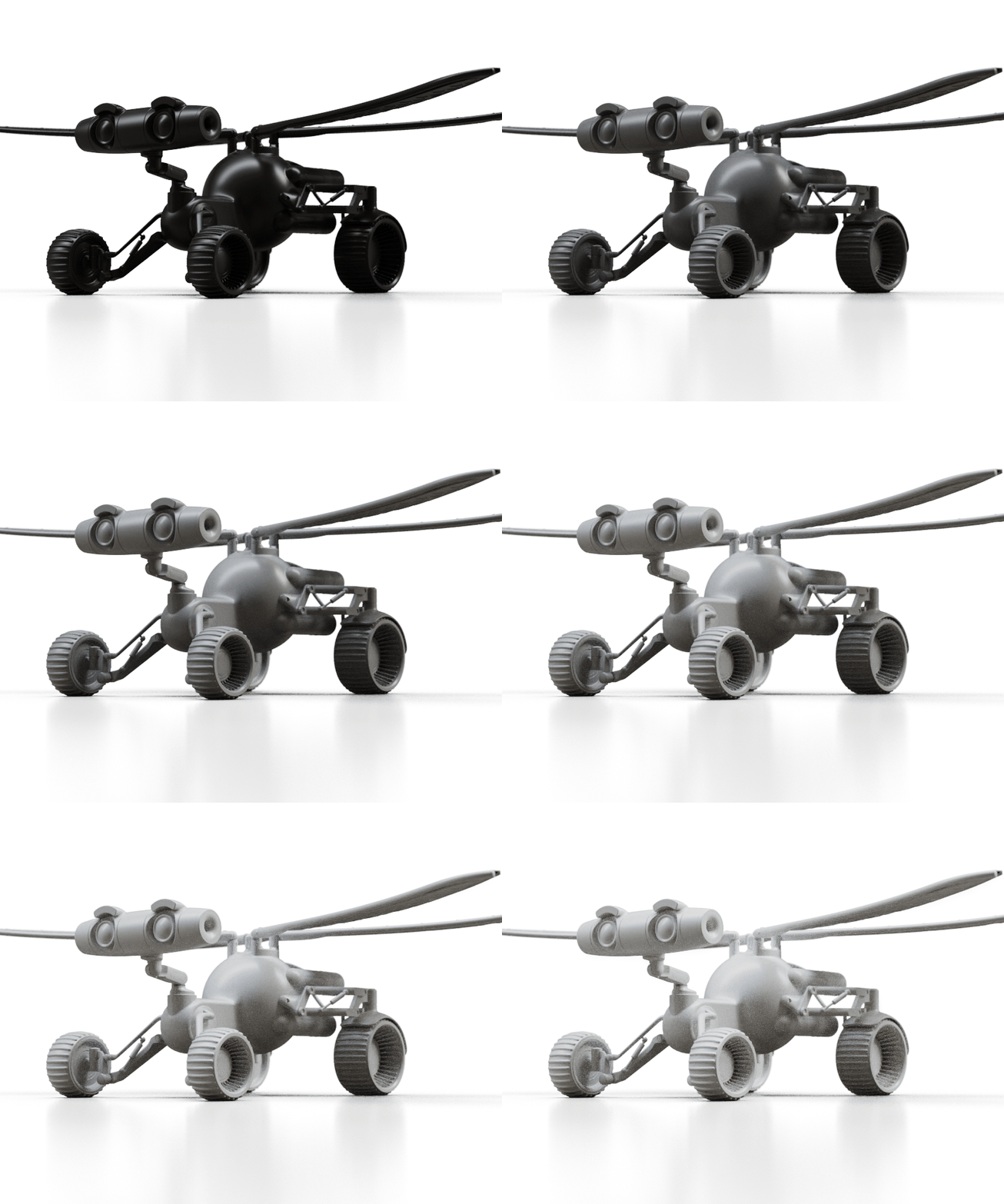
Base weight from 0 to 1 |
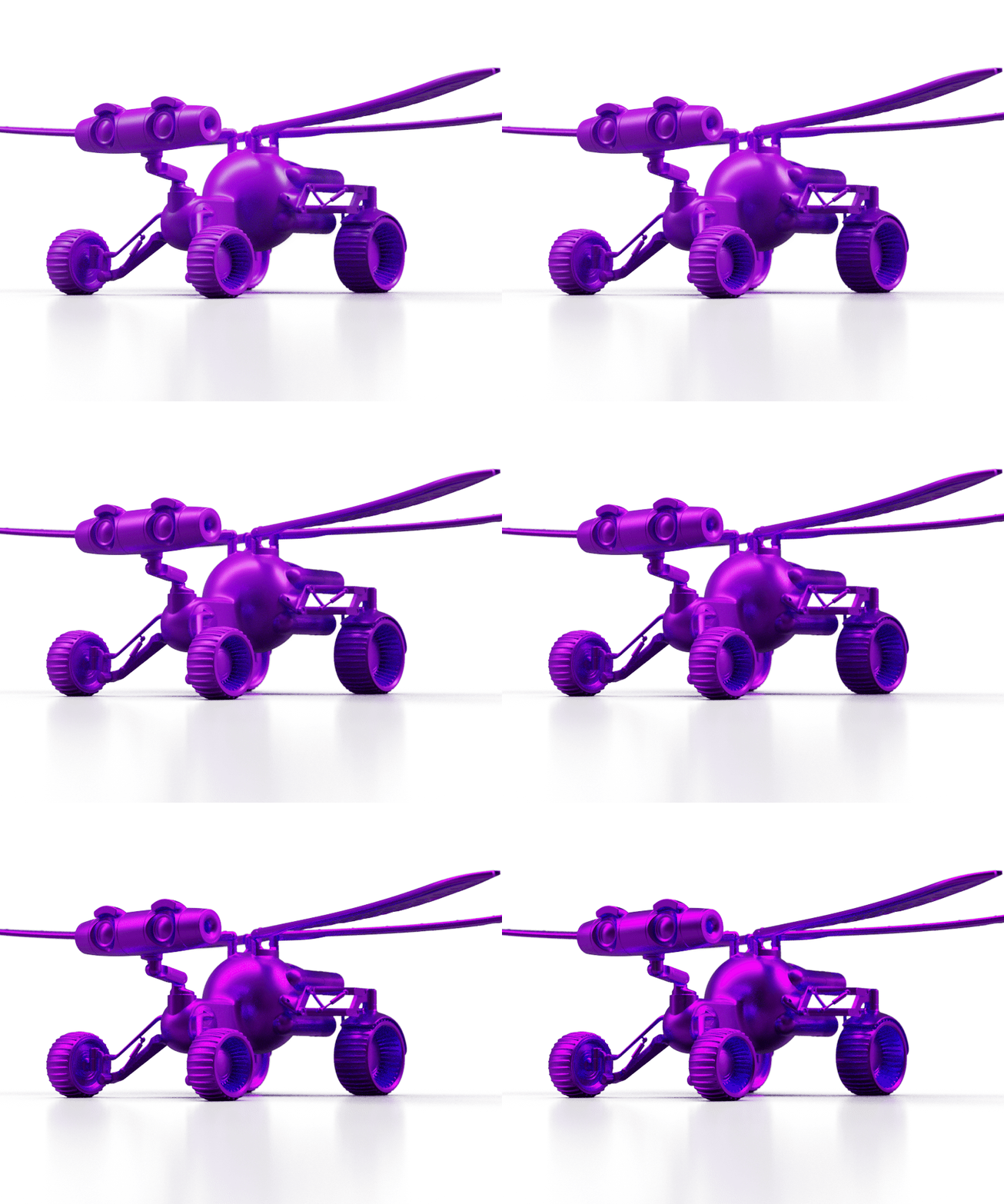
Base Metalness from 0 to 1 |
Diffuse Roughness from 0 to 1 |
Specular
Weight
If your material has dielectric properties this will multiply its dielectric reflections. Is your material more metal-like, this will increase its metallic fresnel.
Color
The color of your specular reflections.
Roughness
This will add microscopic levels of imperfections to the surface of the material. When set to 0, the material will appear perfectly smooth and polished. Increasing the value will give you a more matte look.
Anisotropy
This value determines the amount of anisotropy. Anisotropy (the opposite of isotropy) is the property of being directionally dependent. At 0 the surface will be isotropic and will reflect light evenly. Increasing the Anisotropic value add direction to the reflections, stretching your highlights across the surface.
IOR
This slider controls how much light bends when reflected or refracted as it passes through parts on your model. The default of 1.5 is accurate for simulating most types of glass, but you can increase the value to create a more dramatic refraction within the surface.
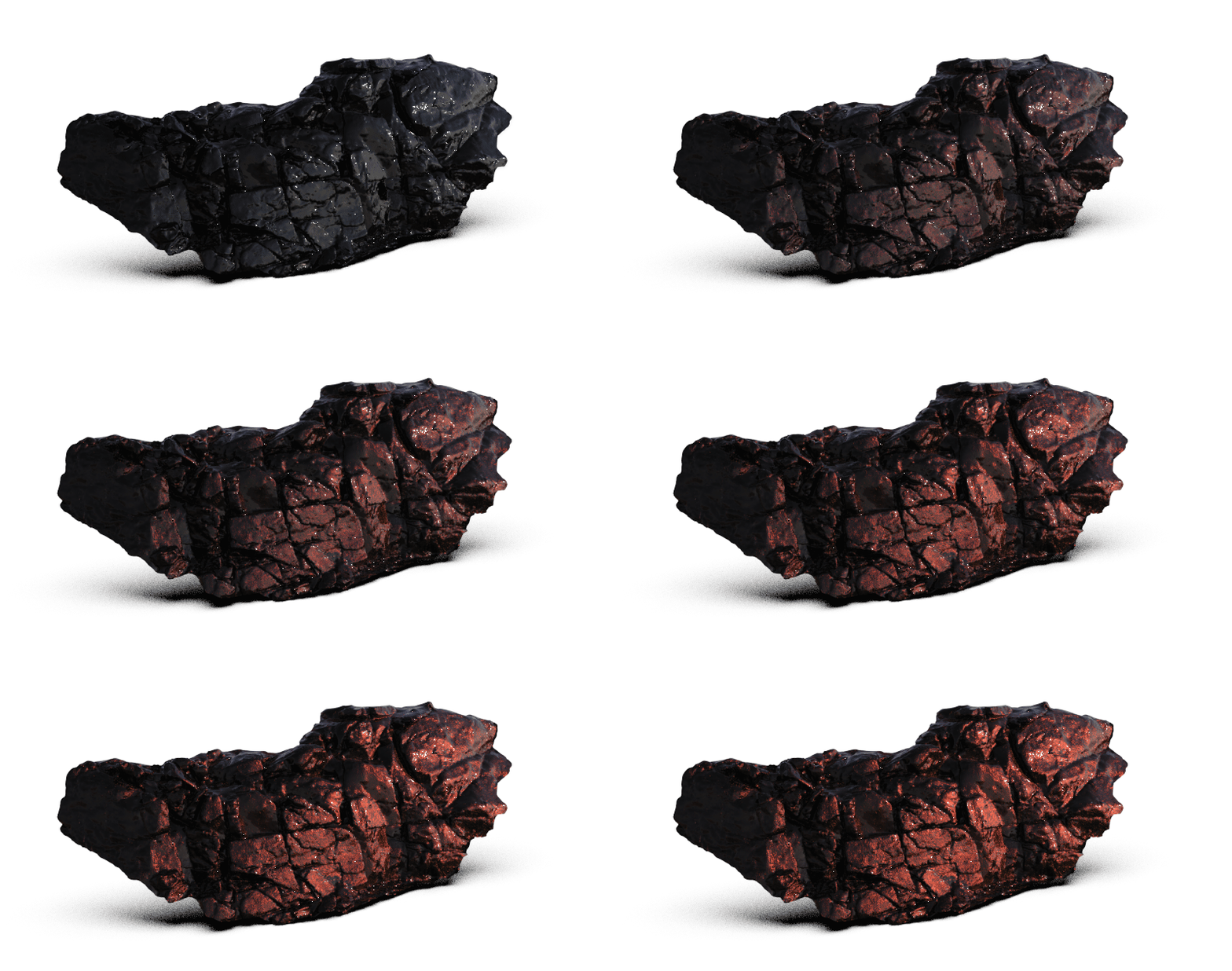
Specular weight from 0 to 1 |
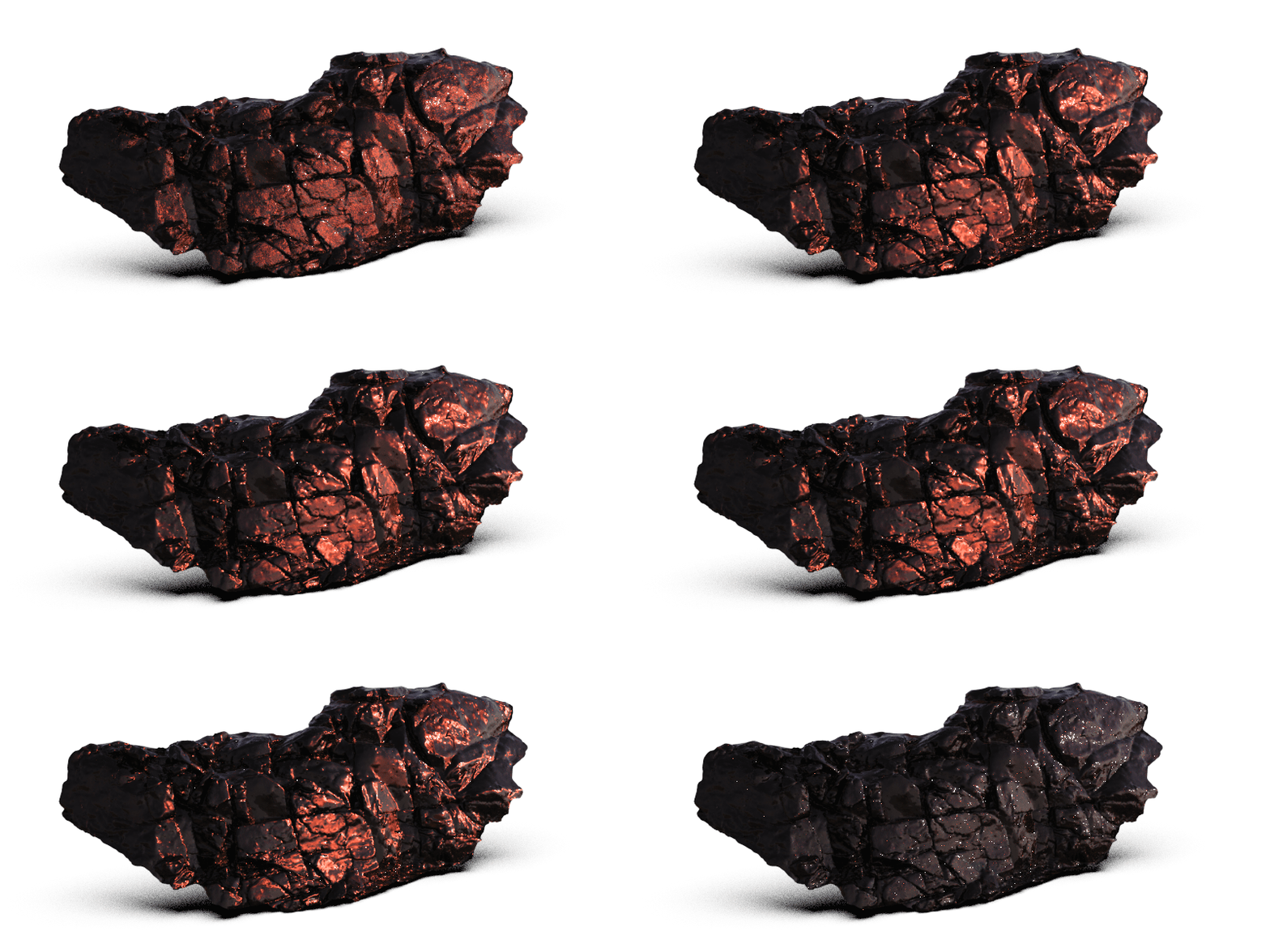
Specular Anisotropy from 0 to 1 |
Transmission
Weight
A blend between translucent base and opacity base. When set to 0 your material will appear opaque, higher values will add more translucency.
Color
The color of the transmission.
Depth
This slider controls the depth of the Transmission color selected, depending on the thickness of the part to which the material is applied. Use Depth to make the Transmission color more or less saturated and prominent. A lower setting will show the color more in thin areas of the model, and a high setting will make the color faint in the thin areas.
Scatter
The color of the light scattered by small particles inside the medium. You can use this for cloudy appearances.
Anisotropy
Controls how the light is scattered. A value of 0 is uniform scattering, a negative value will scatter light backwards, a positive value with scatter light forwards.
Dispersion Scale
Controls the amount of dispersion with a linear multiplier. Higher values result in more dispersion.
Abbe Number
The Abbe number slider controls dispersion of light as it is transmitted through the surface and produces a prismatic effect. This prismatic color effect can be used to create the “fire” effect often desired when rendering gem stones.
A value of zero will disable the dispersion effect entirely. A low value will show heavy dispersion, and as you increase the value, the effect will become more subtle. A setting around 35-55 is a good starting point if a subtle dispersion effect is desired.
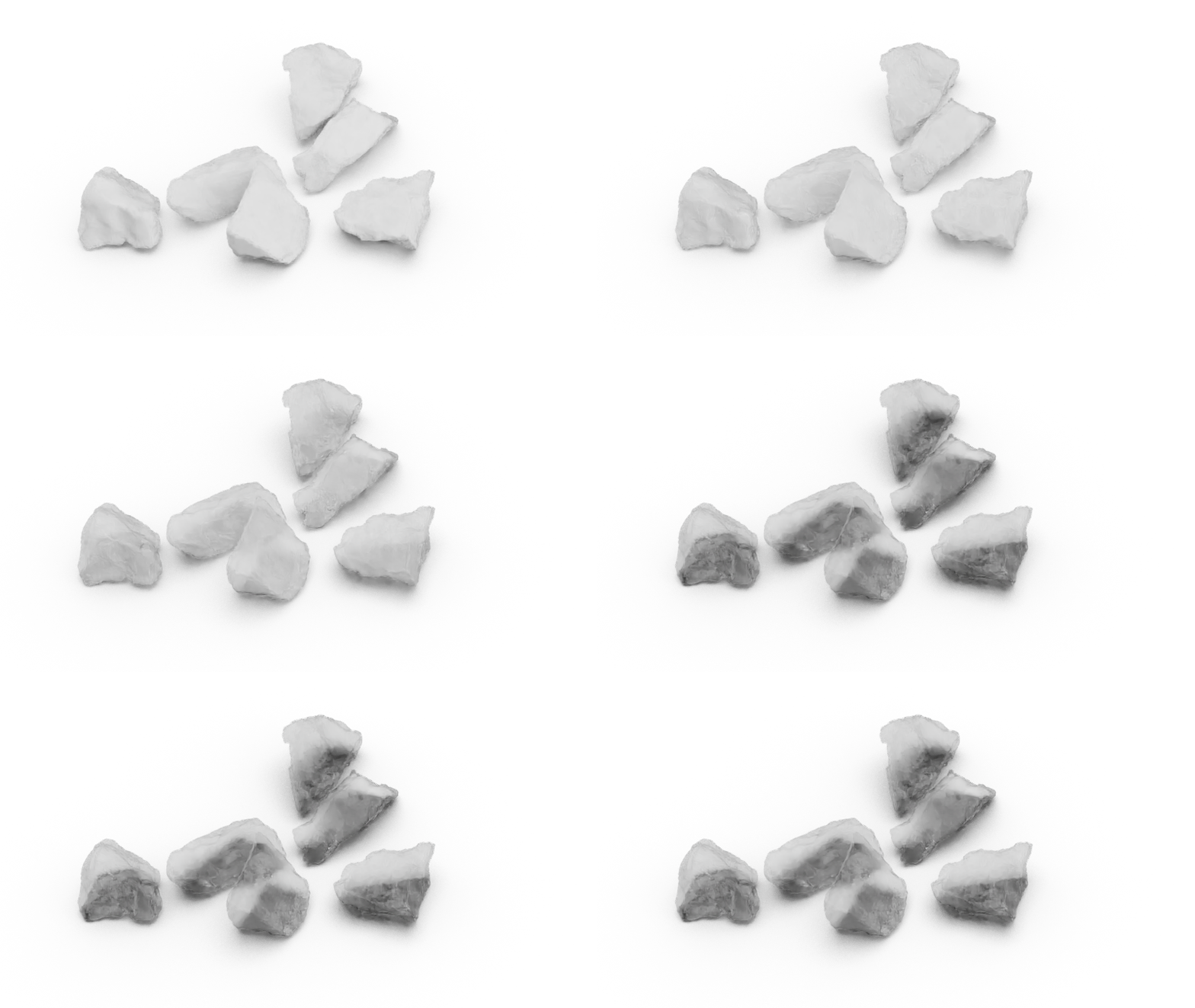
Transmisson weight from 0 to 1 |
Dispersion from 0 to 1 |
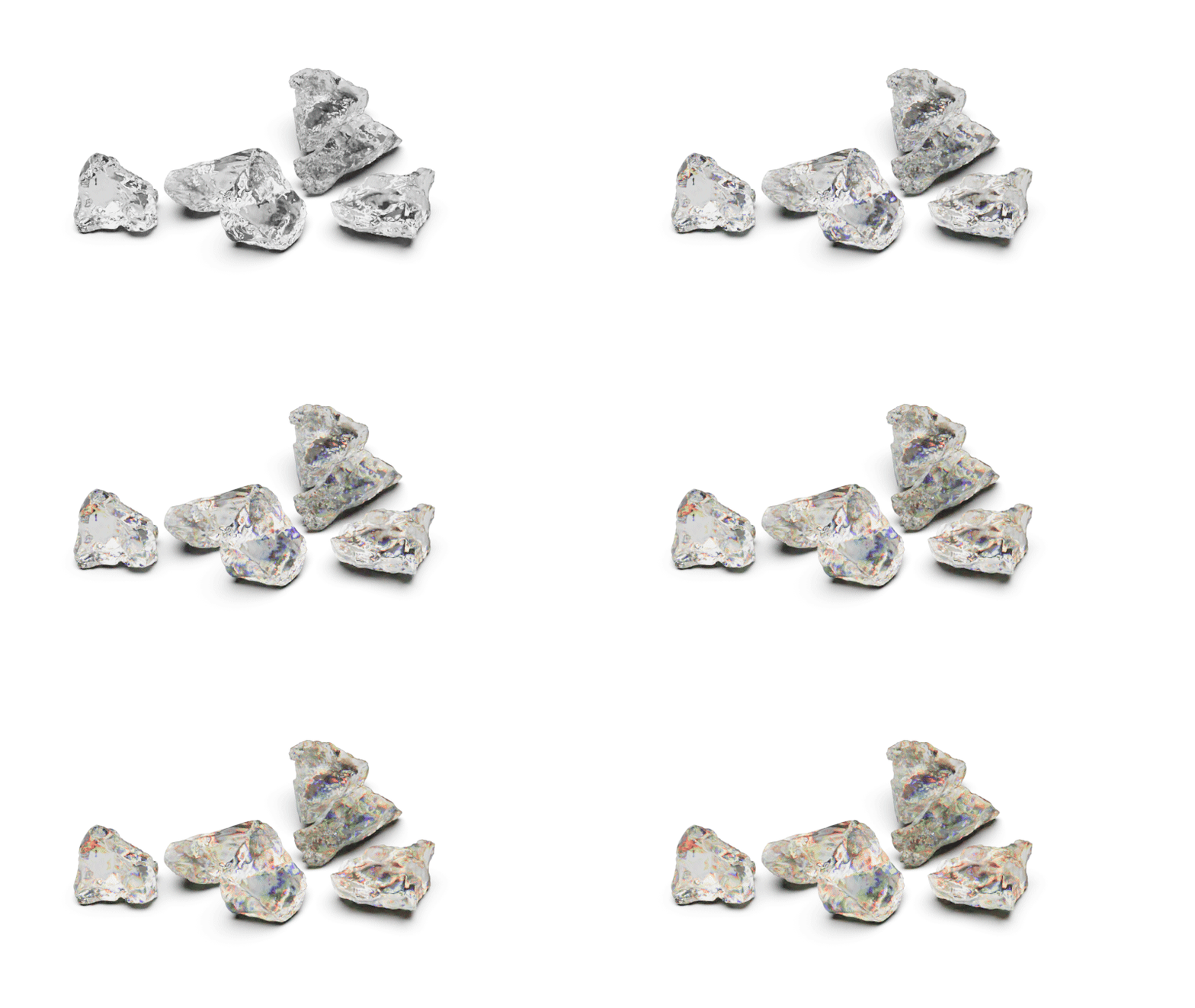
Subsurface
Weight
Blends Subsurface with Diffuse. When set to 0 your material will appear diffuse, higher values will make your subsurface color shine through.
Color
This is the surface color of the subsurface. Something to be aware of is that you will not see the translucent effect of the subsurface color if this is completely black.
Radius
The average length the light travels before interacting with the medium. The higher your radius value, the more of the subsurface color you will see coming through the surface.
Radius Scale
This setting controls the color that light will take on as it passes through the material. Your own skin is a great example of the subsurface scattering effect. When a bright light shines through the thin parts of an ear or the thin skin between fingers, the light is colored by what lies beneath the surface and comes back more red.
While the light is passing through the surface, it is bounced around in many random directions. This creates the soft translucent effect rather than the direct refraction effect of glass and similar materials.
For plastic materials, you will often set this color to something very similar to the surface color, but perhaps a bit brighter.
Anisotropy
Controls how the light is scattered. A value of 0 is uniform scattering, a negative value will scatter light backwards, a positive value with scatter light forwards.
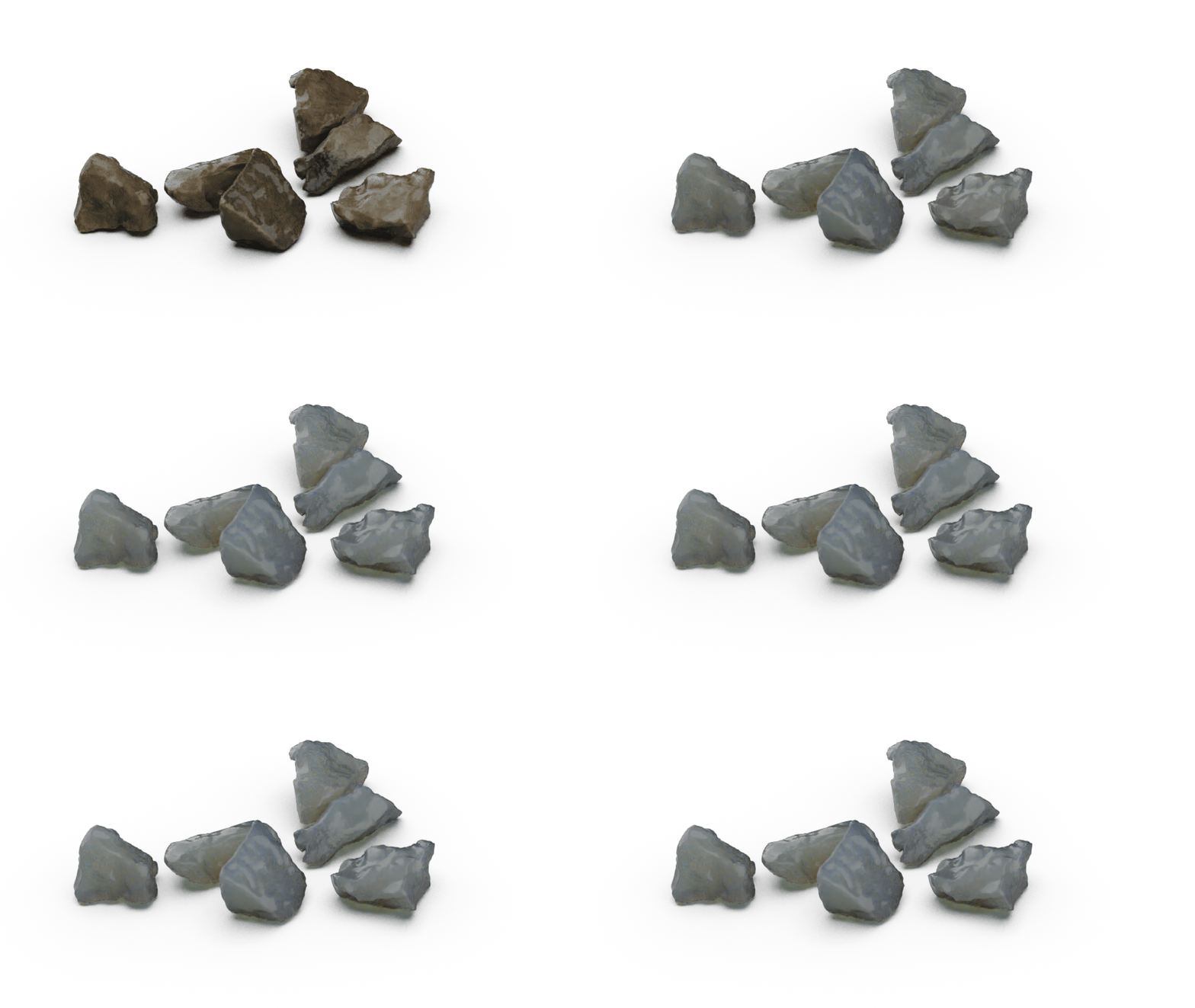
Subsurface weight from 0 to 1 |
Coat
Weight
The surface coverage of the clear coat.
Color
Sets the color for the clear-coat layer. The lighter the color, the lighter the clear-coat. The default is white (completely clear).
Roughness
This will add microscopic levels of imperfections to the surface of the material. When set to 0, the material will appear perfectly smooth and polished. Increasing the value will give you a more matte look.
Anisotropy
Controls how the light is scattered. A value of 0 is uniform scattering, a negative value will scatter light backwards, a positive value with scatter light forwards.
IOR
This slider controls the intensity of the coat. 1.6 is the default and a good starting point. If a more shiny coat is desired, increase the value. This can be useful for making a matte finish or simulating plastics that have a metallic flake effect.
Darkening
Adds a darkening effect to the clear coat. You can think of it like the surface of a stone darkening when it gets wet.
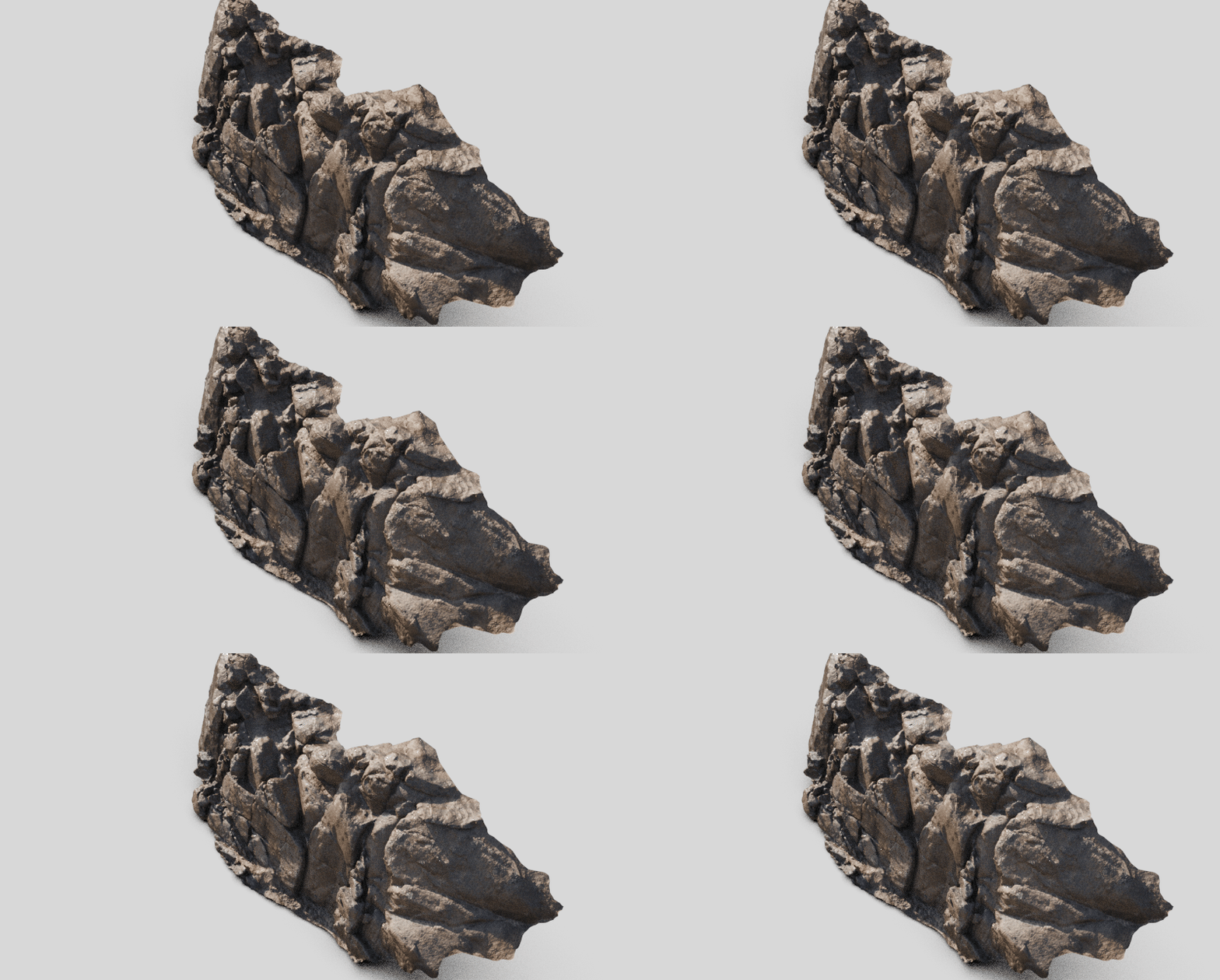
Coat weight from 0 to 1 |
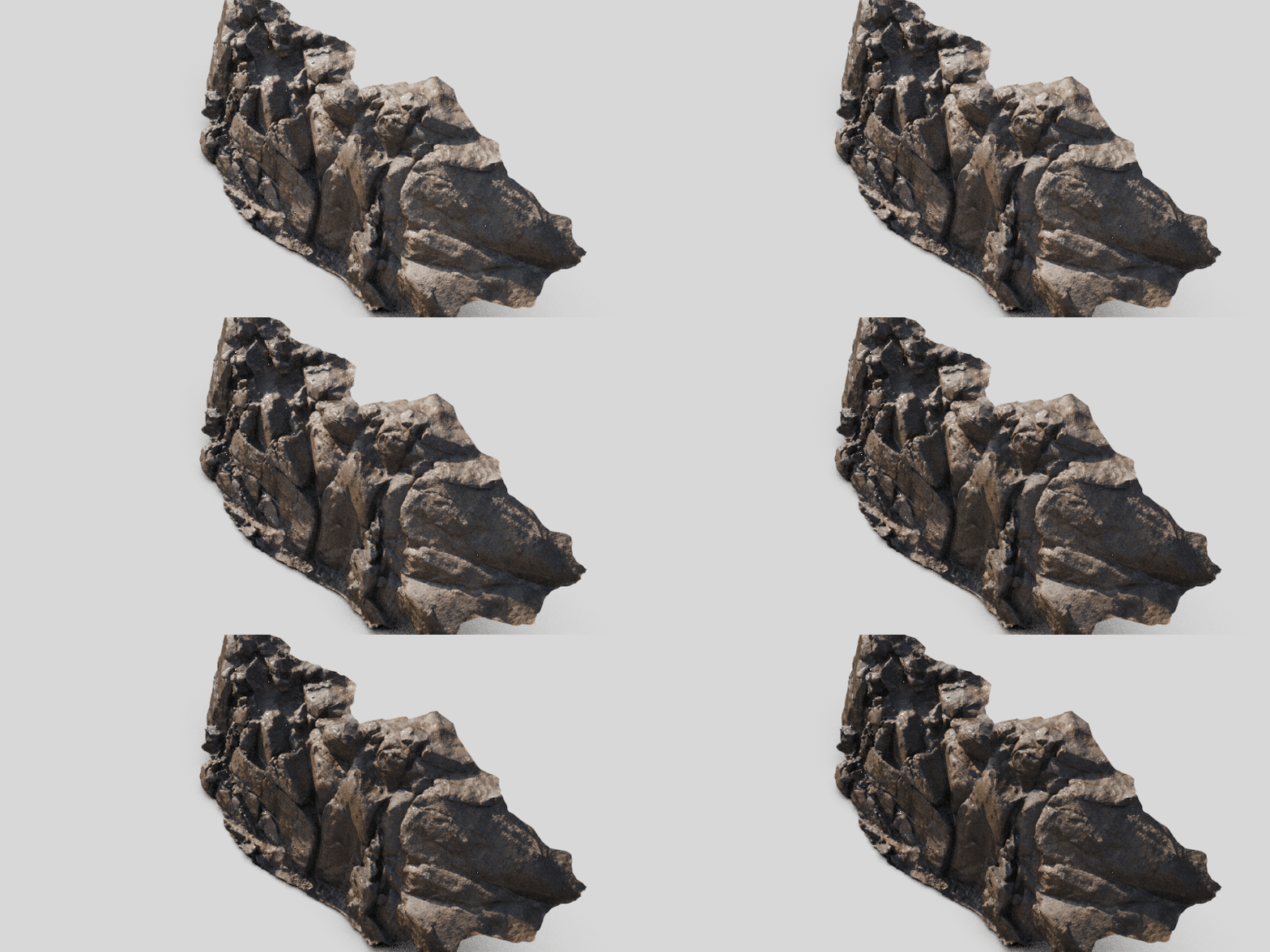
Darkening from 0 to 1 |
Fuzz
Weight
The surface coverage of the fuzz.
Color
Sets the base color of the Fuzz fibers.
Roughness
This will add microscopic levels of imperfections to the surface fibers when the values are increased. Lower values will produce high sheen while higher values will create a more dusty appearance.
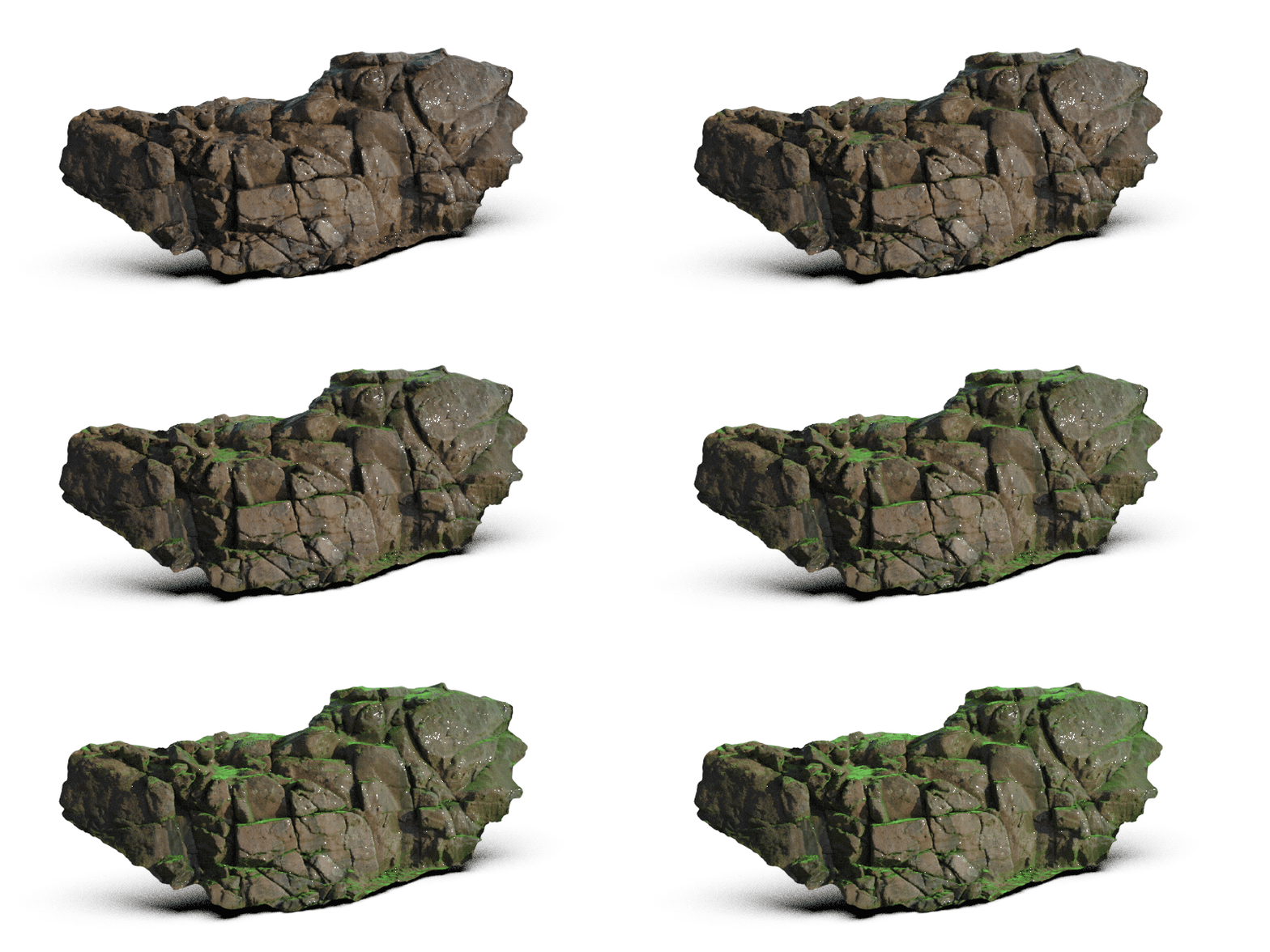
Fuzz weight from 0 to 1 |
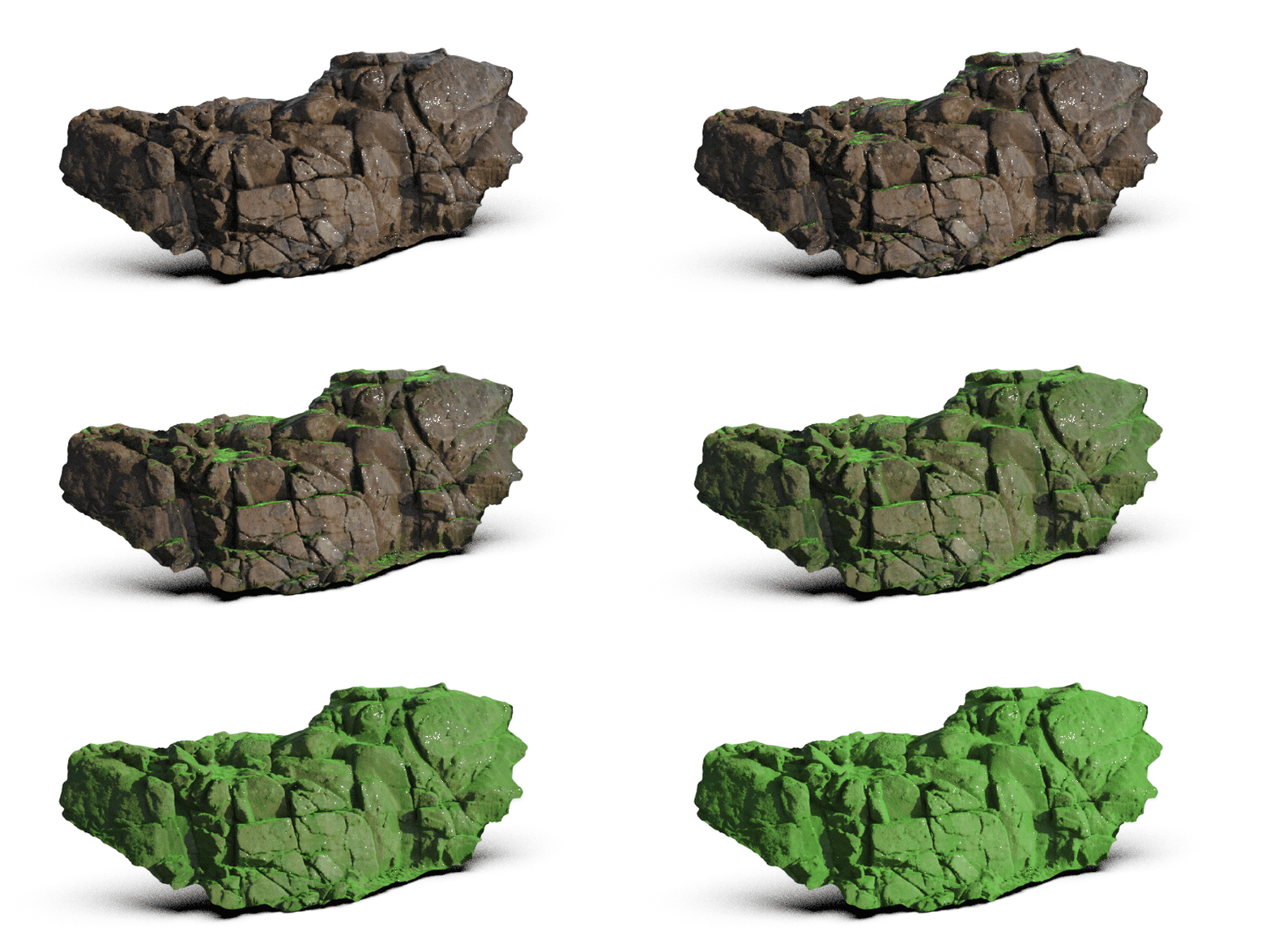
Fuzz roughness from 0 to 1 |
Emission
Luminance
This will control the intensity of the light that is emitted in Candela per m².
Color
This will control the color of the light emitted from the material.
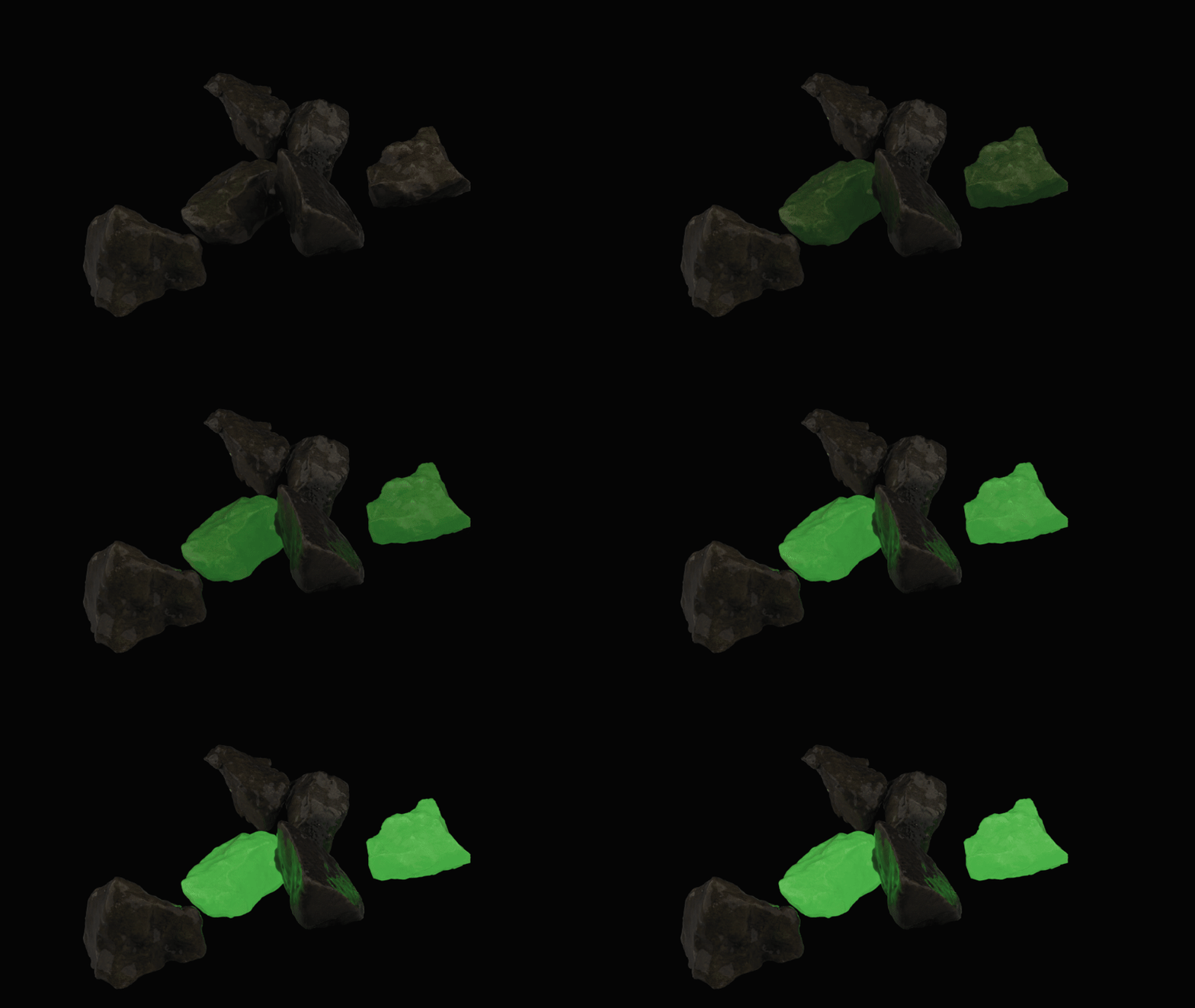
Luminance from 0 to 500 |
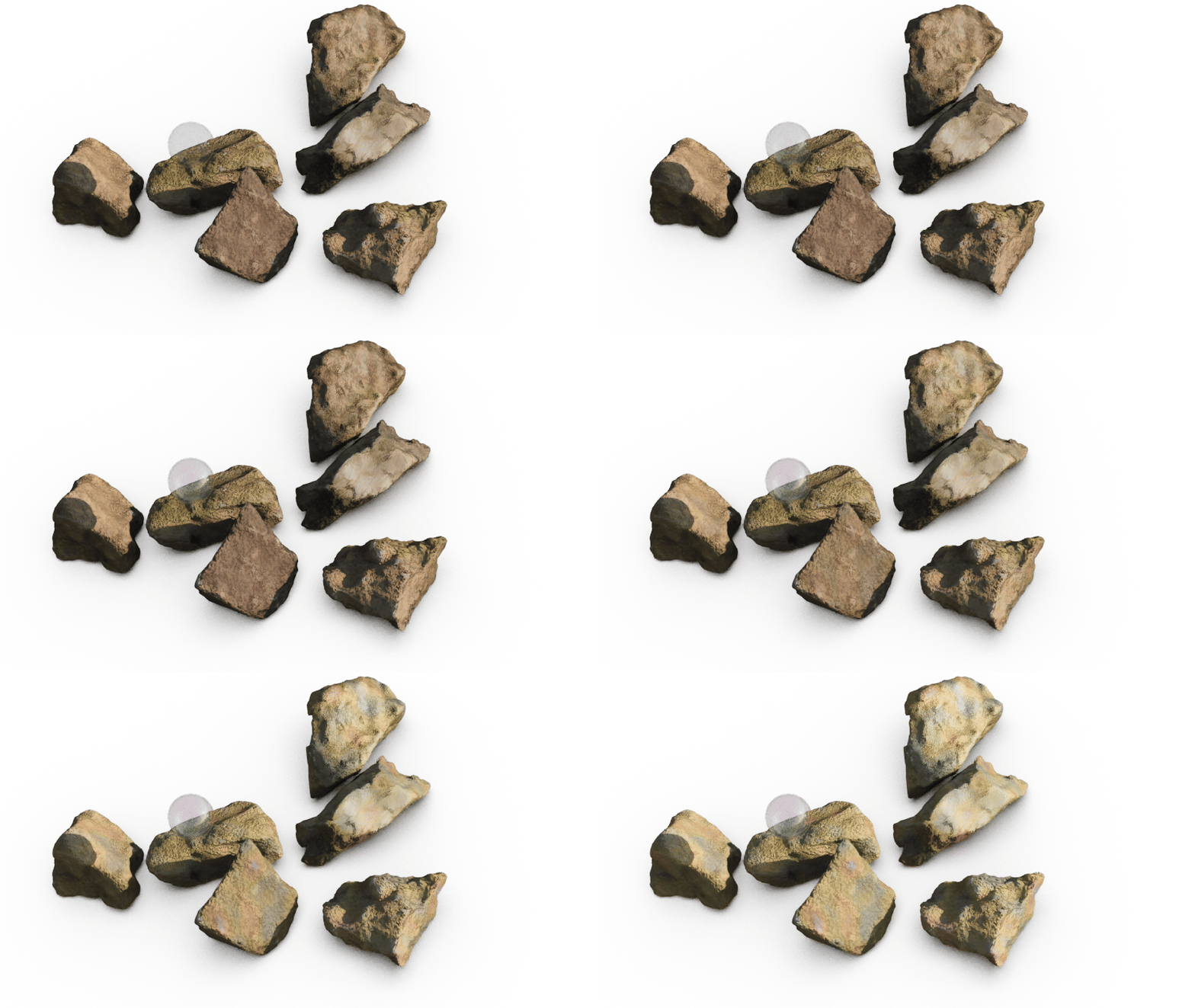
Thin-film
Weight
The surface coverage of the thin film.
Thickness
Changing the Thickness setting will shift the colors that you see on the surface set as Thin Film. Increasing the setting to a very high value will result in the effect of layers of colored rings on the surface.
IOR
The Refractive Index setting for Thin Film provides more or less reflection on the surface. Increase the value to get more reflection intensity. The actual colors you see in the thin film will be affected by the Refractive Index. However, you can shift the colors with the Thickness setting, so typically you will focus only on finding the desired amount of reflection with the Refractive Index setting.
|
Geometry
Opacity
This controls the opacity of the surface.
Thin Walled
If you toggle this, the surface will be handled as if it was and infinitely thin sheet.