Animation Output
Output Options
|
|
1. Resolution
2. Time Range
|
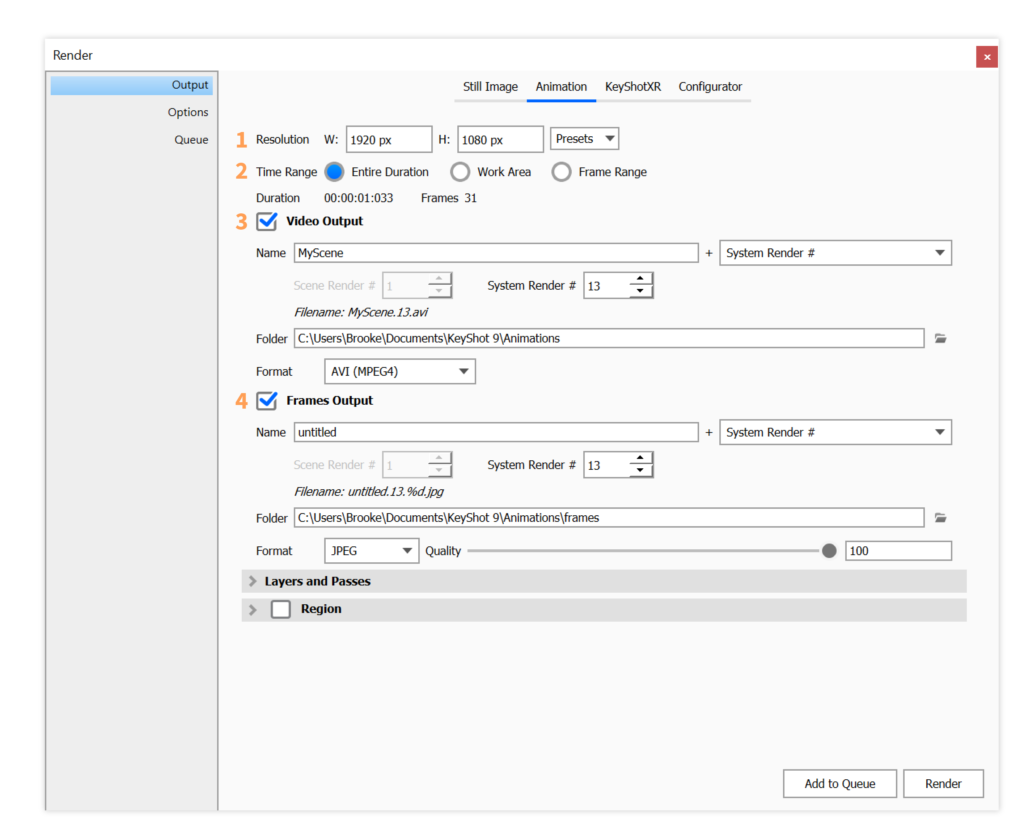
3. Video Output
Enable this to generate a video of the animation.
- Name: Select the Prefix and Name Template that fits your needs. If the Template includes either the System or Scene Revision # you can reset them here. The Filename shows the full render name generated from the Prefix and the active Name Template. Learn More about Name Templates.
- Folder: Select a folder to output the video to. Unless a specific folder is chosen, it will be saved in your KeyShot Studio Animation folder
- Format: Select the video format between following options:
- MP4 (H.264)
- AVI (MPEG4)
- AVI (uncompressed)
- MOV (H.264)
- Animated GIF
4. Frame Output
Enable to output every frame used to create the animation.
- Name: Select the Prefix and Name Template that fits your needs. The image name will have a incremented postfix, that ensures that there won’t be naming conflicts.
If the Template includes either the System or Scene Revision # you can reset them here. The Filename shows the full render name generated from the Prefix and the active Name Template + incremented postfix. Learn More about Name Templates. - Folder: Select a folder to output the video to. Unless a specific folder is chosen, it will be saved in a Frames folder located in your KeyShot StudioAnimation folder
- Format: Select format for the images between following options:Integer output formats:
- PNG
- JPEG
- TIFF
- PSD
- PSD 16-bitFloating point formats:
- EXR (16-bit half-precision)
- TIFF 32-bit
- PSD 32-bit
Warning
If you have Switch Events in your animation and are using a Name Template for the images, you might experience problems with creating the video.
Workaround: Use a Name Template that does not contain any of the parameters switched by the Switch Event (Active Studio, Camera, Model Sets, or Environment).