Components
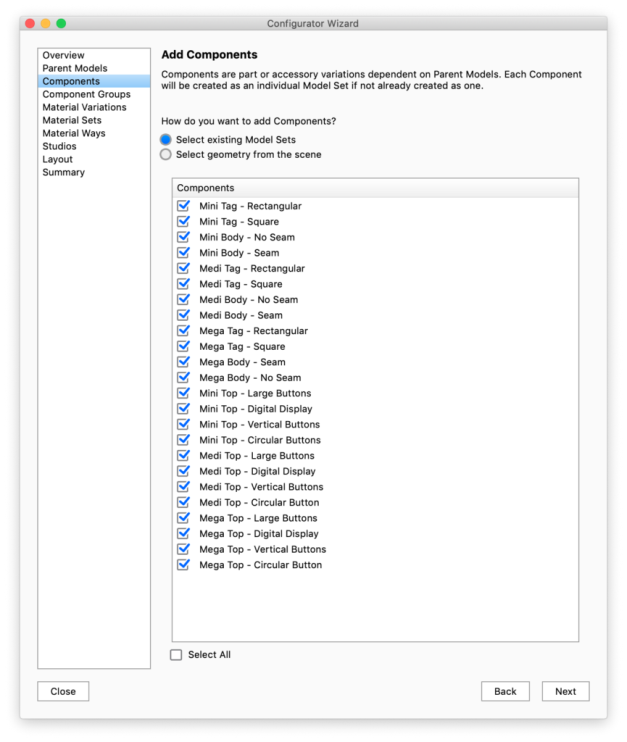
If you wish to present part or accessory variations you will need to add Component Model Sets. These will be the options in subsequent choices once the user has selected a parent model in the Configurator. Once again you can select existing Model Sets if you have already separated them in the Scene tab or select geometry from the scene manually.
|
Select the Model Sets you want to use for components and proceed to the next step. Notice that the names of the Model Sets will be exposed in the Configurator UI. |
Component Groups
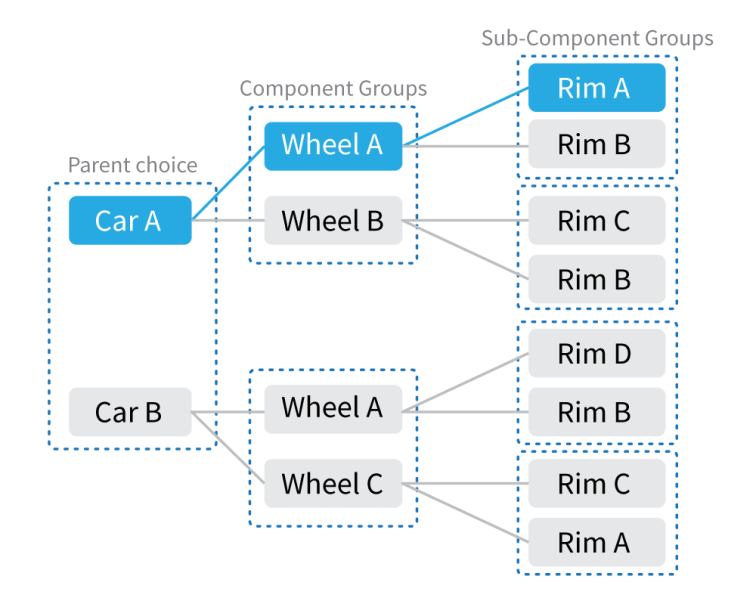
After selecting which Model Sets are going to be components in your Configurator, you need to set up the relationships between Parents and components in Component Groups and Sub-component Groups. A Component Group or Sub Component group is a group of components that the user can choose between. Component groups are tied to the choice of a specific Parent and Sub Component Groups are tied to the choice of a specific Component
A component can be reused in multiple component/sub-component groups, if the parent or parent component is different.
|
|
Add Component Groups
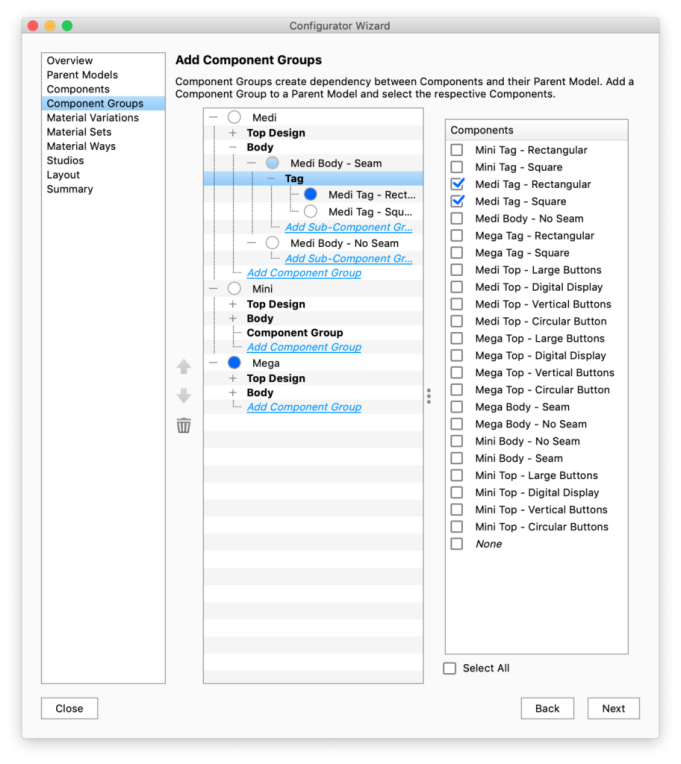
Simply click the inline link Add Component Group or Add Sub Component Group and check the respective Components in the list on the right. Repeat this until all relationships are defined. You can also select None as an option if you wish to display the Parent Model with no Component. In this example of a car with wheels it would not make sense to do so.
Remove Component Groups
To remove a component from the component group uncheck in the Components list. To remove a Component group, right-click the group and select delete. This will not affect the Model Sets, only the relationships you have set up.
Default choice
The radio buttons in front of each component determine the default option within that choice.
Order
If you want to list the options in a specific order, you can move them up/down with the buttons to the left of the tree-view.