Studios

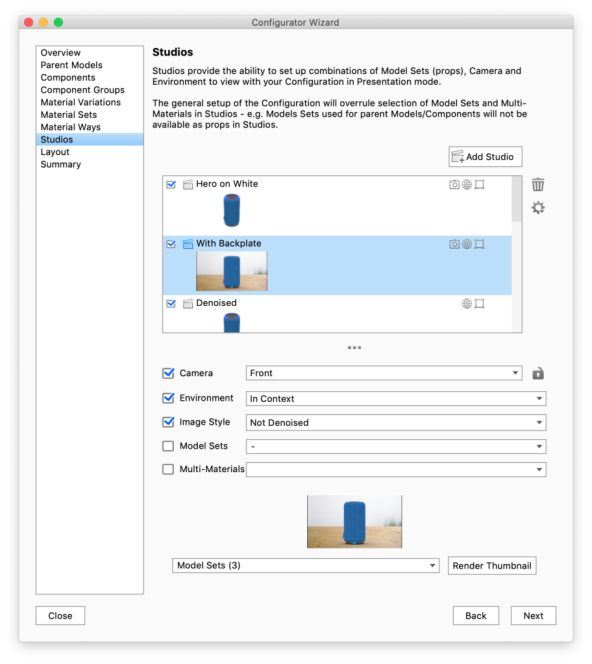
Studios can be enabled in order to change preset Cameras, Environments Image Styles and prop/scene geometry created as Model Sets.

Select which Studios you want included in the presentation by checking/unchecking them or add a new studio if necessary.

If no studios are selected, the Studios tab in presentation mode will not be displayed and the presentation will use the current environment and camera position.
Camera

You can lock/unlock the Camera by clicking the lock icon next to the camera drop-down. If a Studio contains a locked camera, it will also be locked in presentation mode and the user will not be able to tumble/pan/dolly. In Presentation mode this is shown by a small lock icon in the top right corner.

Model Sets and Multi-materials

Any Model Sets/Multi-Materials that can be set as a part of the configuration will be ignored when you switch Studio in the presentation, even if they are set up to belong to a Studio. This means that only “prop” Model Sets/Multi-Materials can be displayed/hidden/changed with Studio switch.

Thumbnails
If the default thumbnail that is generated does not contain the elements you want displayed, you can select witch Model Sets to include in the drop-down at the bottom of the page and re-render the thumbnail.