Summary
The Summary section allows you to see an overview of the number of variations in your Configurator and to preview each of the variations in the Real-time View before entering Presentation Mode.
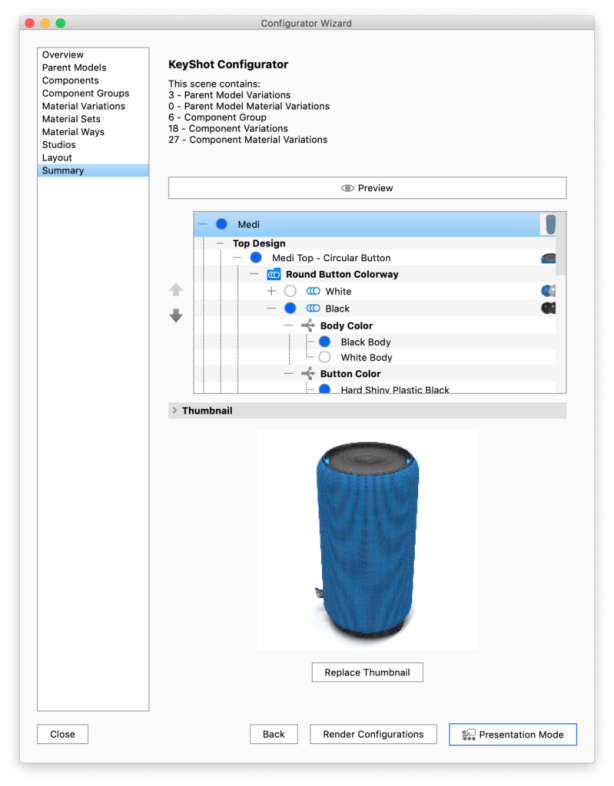
|
Naming
Ordering
Default options
|
Thumbnails
The summary step of the Configurator Wizard also gives you the option of re-rendering or adding custom thumbnails for Model Sets, Materials and Material Ways. The overview shows a mini thumbnail for all items, hover over this or select to preview the thumbnail. If you want to replace it with an image of your own or render a new thumbnail, select the item and click the Replace Thumbnail. A dialog will appear, with following options
- Model Sets
- Inherit from Model Set: this will use the thumbnail created in the Model Set panel
- Custom Image: this option lets you select an image on the disk. This will be scaled down to match the size of the rest of the thumbnails. You may want to consider what aspect ratio your custom image has, so that it fits well with the other thumbnails in the current group/set when it is scaled down to match.
- Render: this option will let you render a new thumbnail, while selecting studio, whether to show the model isolated or in context, i.e. with all the default options related to the item. You can also select the aspect ratio of the thumbnail, as well as adjust the position of the item and the size and quality of the thumbnail image.
- Materials
The default thumbnail will show the KeyShot material ball with the current material. This can be replaced with a custom image. - Material Ways
The default thumbnail will show 3 KeyShot Material balls with the first 3 materials in the material way. This can be replaced with a custom image.