Geometry View Window

The Geometry View window provides a secondary OpenGL viewer for use as a secondary view for lighting, camera or animation setup. The Geometry view is dockable and can be launched from the Ribbon in KeyShot Studio, via the Main Menu, Window or via the hotkey O.

Geometry View
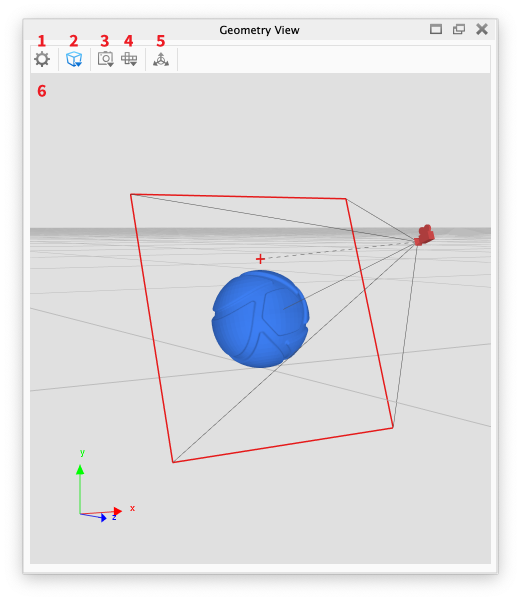
  1. Settings

    Set the background color and customize what is visible: ground grid, lights, cameras, etc.
  2. Display Style

    Controls your model’s display style: shaded, flat, wireframe, shaded wireframe, and bounding.
  3. Camera Type

    Choose to sync with the active camera or navigate independently in this view.
  4. Standard Views

    Snap to a pre-defined standard camera view: front, right, top, etc.
  5. Move Tool

    Click this button to launch the Move Tool.
  6. Geometry View

    OpenGL viewer that can be viewed next to the Real-Time View.

Learn more about what you can do in the Geometry View section.

Note
The geometry tools, that in previous versions were located in the Geometry view, have in KeyShot Studio 9 been moved to the Tools menu in the Ribbon.