Render Pass Output
Select All Render Passes checkbox or the checkbox next to the individual pass type to enable pass output. Doing so will render the selected pass(es), along with the original image format specified on the output tab. Select the EXR or a PSD option from the Format drop-down menu to enable the Create Multi-Layer File checkbox. This will compile all your passes into a single file.
Note
Please note that when rendering to PSD (not 32-bit) with “Create Multi-Layer File” enabled, all Render Passes are embedded in a 8-bit PSD file. As a consequence, some information will be lost. If maximum flexibility is desired, PSD 32-bit should be used instead.
KeyShot Studio supports 14 types of render pass output, including:
Diffuse Pass
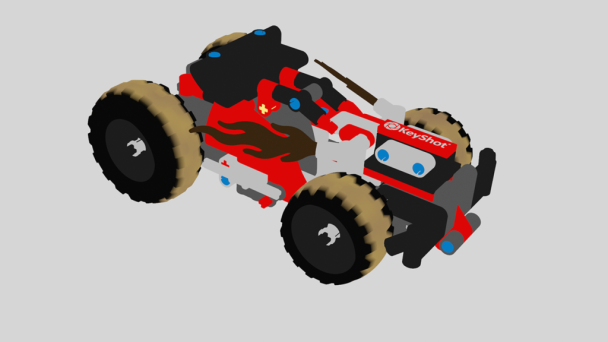
The Diffuse pass creates an image containing the diffuse color of all materials in the scene, including Labels.
Lighting Pass
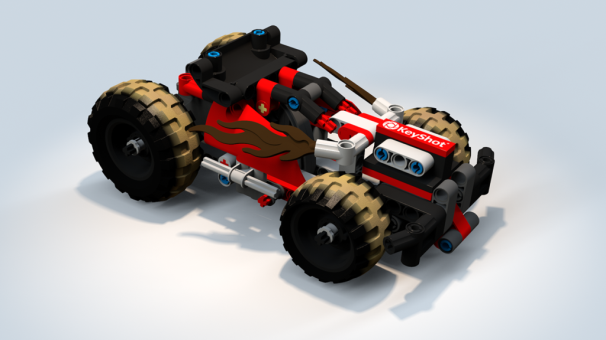
The Lighting pass creates an image containing only the direct component of the lighting in the scene. Furthermore, this pass is multiplied by the materials’ diffuse color.
Global Illumination Pass
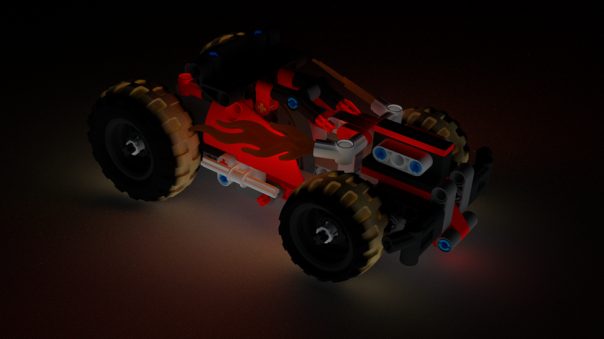
The Global Illumination pass creates an image containing only the indirect component of the lighting in the scene. Furthermore, this pass is multiplied by the materials’ diffuse color.
Note
When Global Illumination is disabled in the Lighting tab, the Global Illumination pass will result in a completely black image.
Caustics Pass
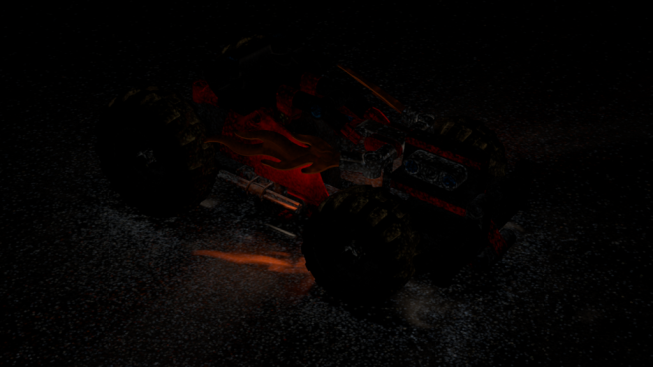
The Caustics pass creates an image containing the lighting from caustics in the scene.
Note
When Caustics is disabled in the Lighting tab, the Caustics pass will result in a completely black image.
Raw Pass
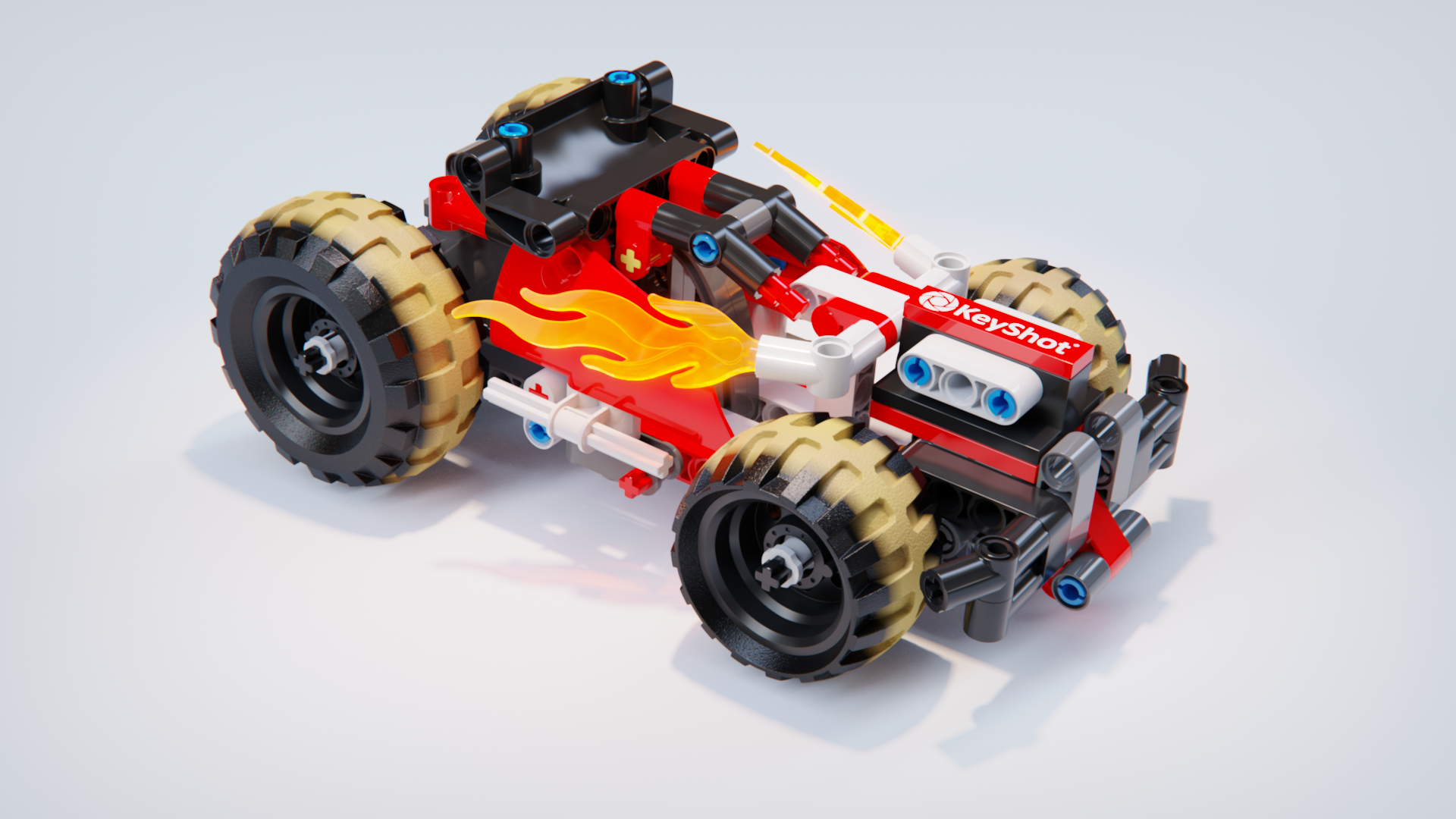
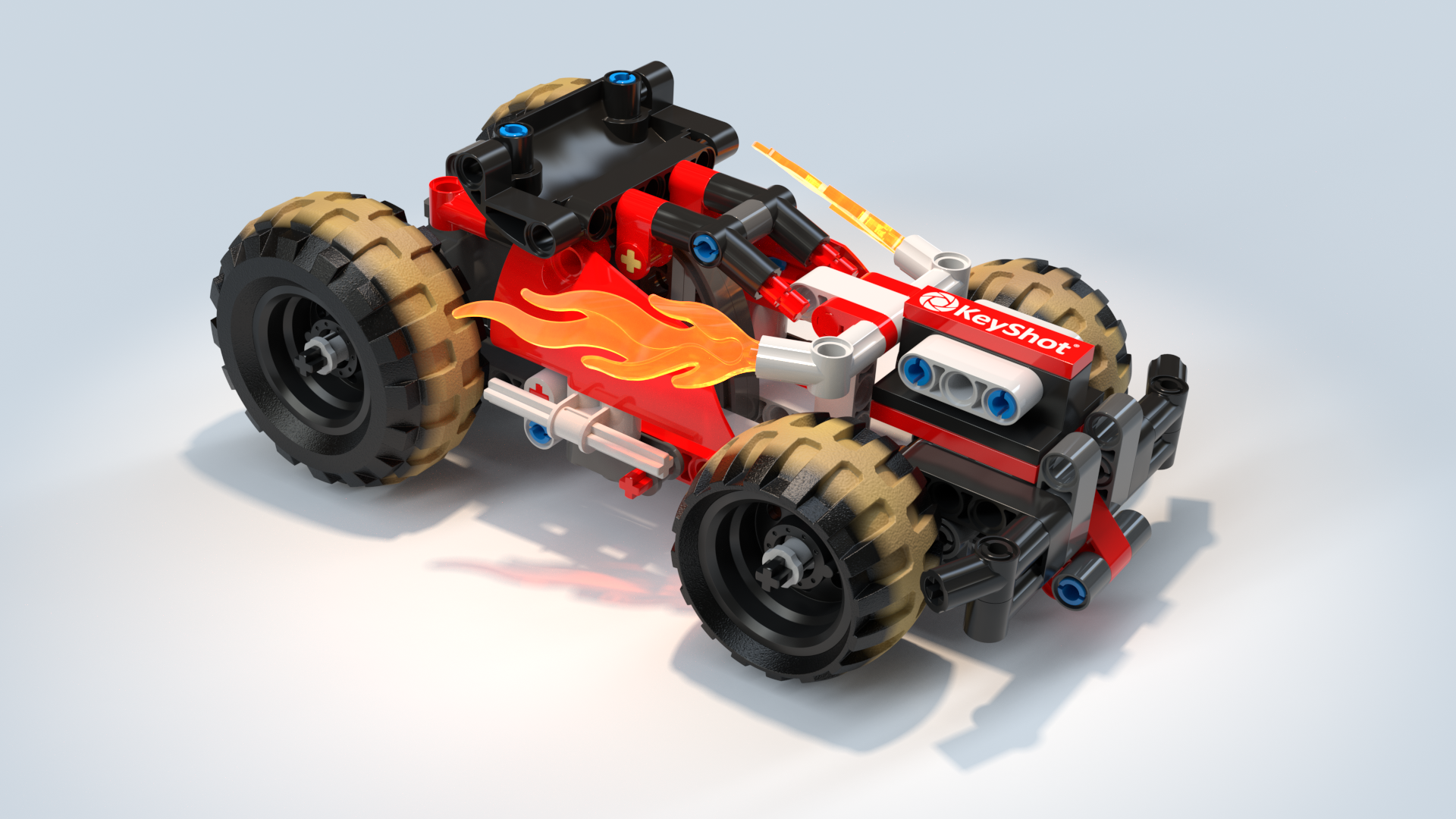
The Raw pass creates an image without any Image Styles applied. It is output in the EXR format.
Reflection Pass
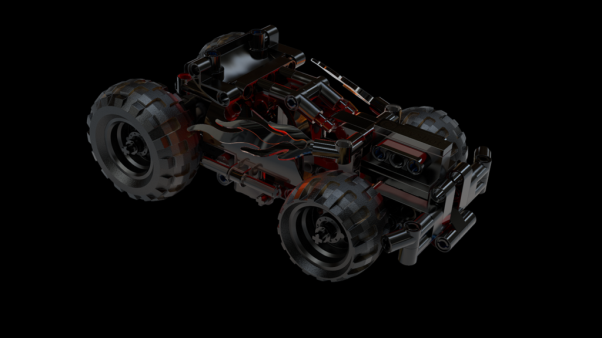
The Reflection pass creates an image containing the reflections of all reflective materials in the scene.
Refraction Pass
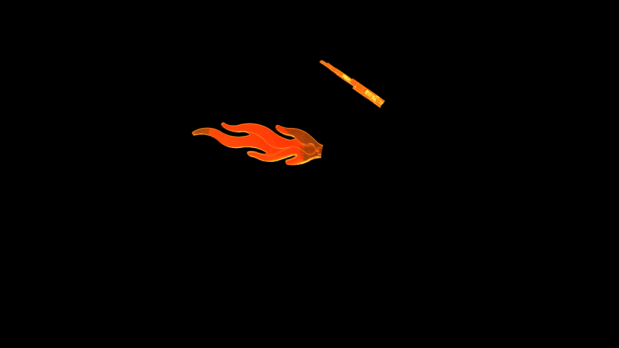
The Refraction pass creates an image containing the refractions of all refractive materials in the scene.
Shadow Pass
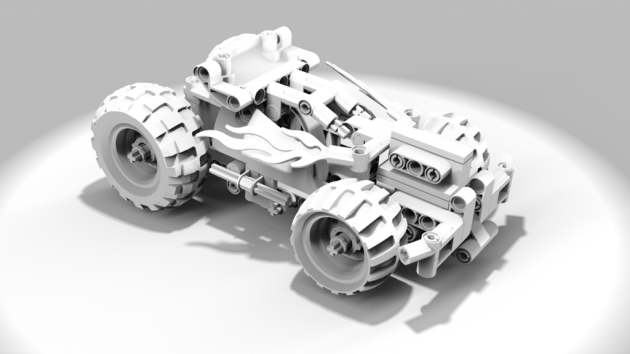
The Shadow pass creates an image containing shadows from all light sources in the scene, both HDRI lighting and physical lights (light source materials).
Ambient Occlusion Pass
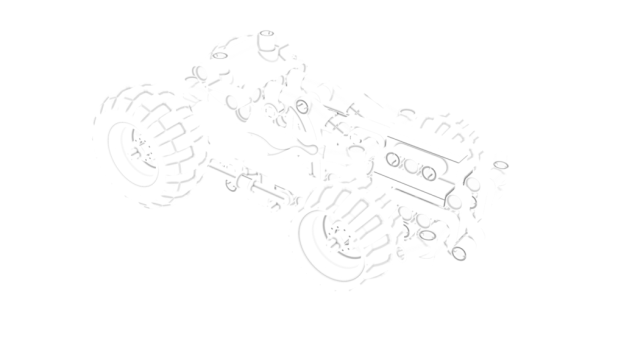
The Ambient Occlusion pass creates an image where unoccluded surfaces are colored white, and occluded surfaces black. This pass can be used in compositing to accentuate crevices and internal model edges.
Cryptomatte
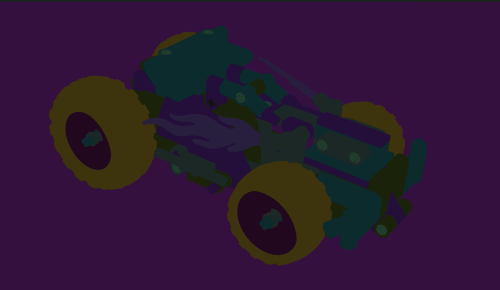
The Cryptomatte pass shows a set of unique, color-coded ID values for different materials or objects in the scene. You can use these to easily isolate or select specific elements in your post-processing software.
When the Cryptomatte pass is enabled, you can choose:
-
Materials - Creates mattes for materials
-
Objects - Creates mattes for objects
-
Depth - Adjusts how many objects/materials are recorded per pixel
You can read more about the Cryptomatte standard here.
Clown Pass
|
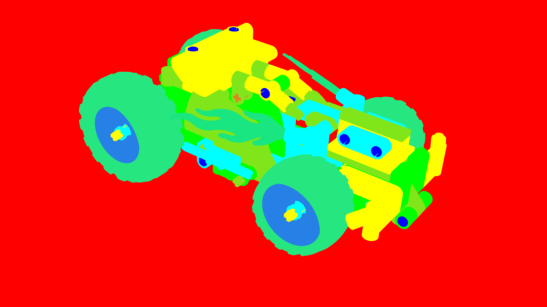
The Clown Pass creates an image where each material is displayed as a flat color for easy selection and masking in an image editor or compositor. When the Clown Pass is enabled you have the option to “Separate Labels in Clown Pass” which can be accessed from the Color differentiation follows these rules:
|
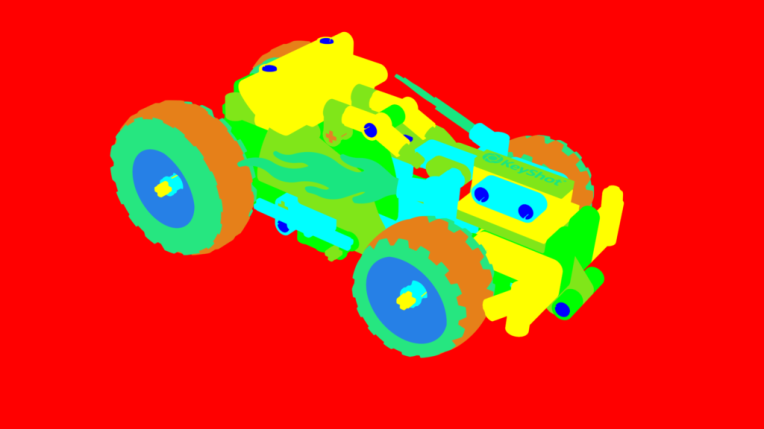
 icon.
icon.
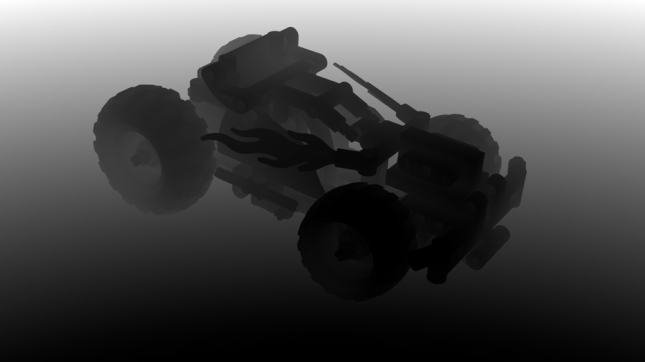
Depth Pass
|
|
The Depth pass creates a depth map, which is an image that contains information relating to the distance of surfaces to the camera. Depth maps are used in other applications like Adobe Photoshop and Adobe After effects to simulate effects like depth of field. |
Tip
Since each pixel in the Depth pass represents an actual distance from the camera to the model surface, this pass might display with unexpected results in an image editor. Typically, the Depth pass will show as completely white. To reveal a grayscale image in Photoshop you can perform the following steps: Image > Adjustments > HDR Toning > Method: Equalize Histogram.
Normals Pass
|
|
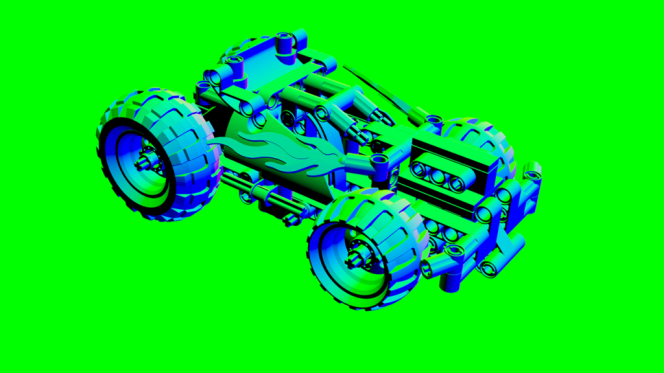
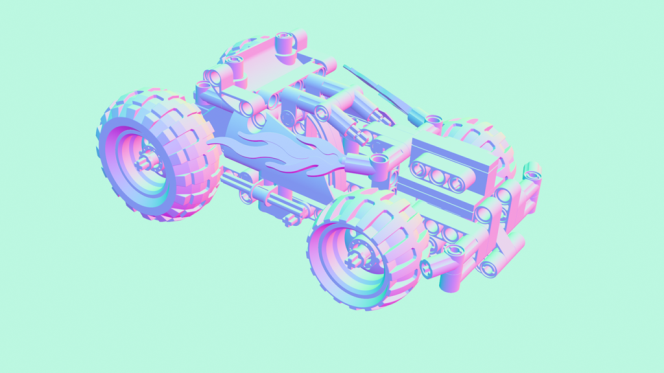
The Normals pass creates an image where each pixel represents the geometry’s orientation, using the surface normals in the scene. By default, the normals are generated in world space (relative to the scene). When the Normals Pass is enabled you have the option to enable “Camera Space Normals” which can be accessed from the A Normals pass can be helpful for quick relighting in post without having to rerender the scene. |
Tip
A Normals pass with “Camera Space Normals” can directly be used as a normal map for bump on materials.
Labels Pass
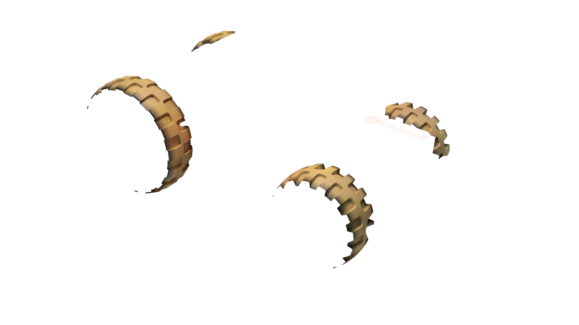
When this is enabled all Labels will be output on a single image with alpha.
Tip
A Clown pass with “Separate Labels in Clown Pass” enabled can be used to select or mask the individual Labels.