Material Templates
Material templates automate the material application process e.g. when importing cad models to the scene.
Material Templates is a powerful feature in KeyShot Studio, that automate the materials applied to your model in a scene. Anyone working with large assemblies can save time using Material Templates to automatically apply materials to parts in a scene. Once a material template has been created, it can be used to apply materials to a new model upon import.
With a material template, materials from the KeyShot Studio library are applied to your model’s parts based on the name of each part’s original materials.
Launch the Material Template window form the Main menu > Window or from the material template icon  in the Tools section of the Ribbon.
Create Template
Create a new template by clicking on the add icon.
|
|
MethodTwo methods can be used in creating a material template, Automatic and Manual.
TypeYou also have to choose whether the template should apply materials based on part name or original material name.
|
Note
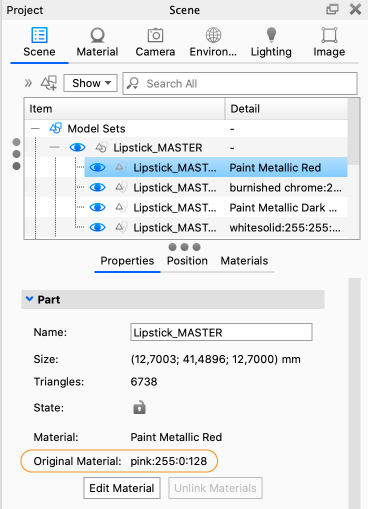
The Material Template applies to the original material names of the parts, ie. the name they had when the parts were imported from the CAD file. You can find the original material name in the properties of the selected part below the Scene Tree.
Wildcard
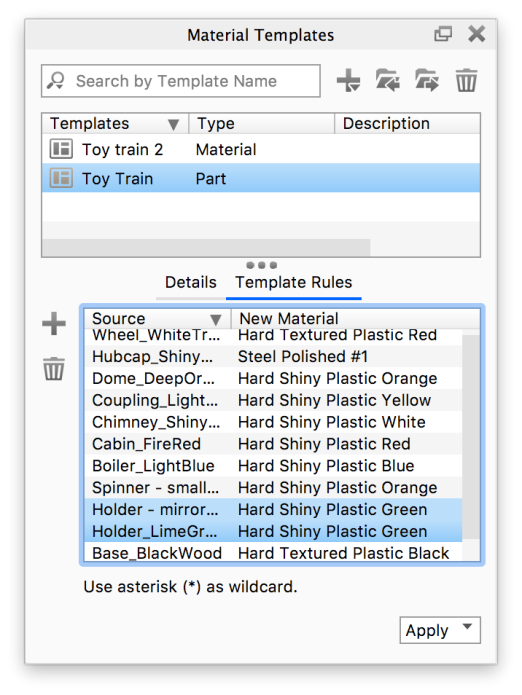
The wildcard refers to the practice of applying a material to several parts using the source name. This can be activated by inserting asterisks (*) to the source name – e.g. Holder* this will apply the material in the destination to all the parts containing “Holder” when the material template is applied.
Each new template is added to the template list, which can be accessed with any scene opened in KeyShot Studio.
Add Template Rules
The Automatic approach will populate the template with rules for all KeyShot Studio materials in the scene while the Manual approach requires you to pick the parts you want to set up rules for. You can at any time add rules to the template, no matter if it was created using the Manual or the Automatic method.
A template rule consists of a Source (either part name or source material name) and New Material name.
Use the  button next to the template to create a new rule and add a source. Or drag a part from the Scene Tree onto the list – this will create a rule with the name or source file from the part.
Add a Material to the rule by dragging a material from the Material library/Material tab onto the rule in the template list.
Applying Templates
Applying templates can be done through the “Material Templates” window or the import window.
|
|
Material Template DialogTemplates can be applied using the Apply button. This will give you two options: To Scene or To Selection.
|
Import Dialog
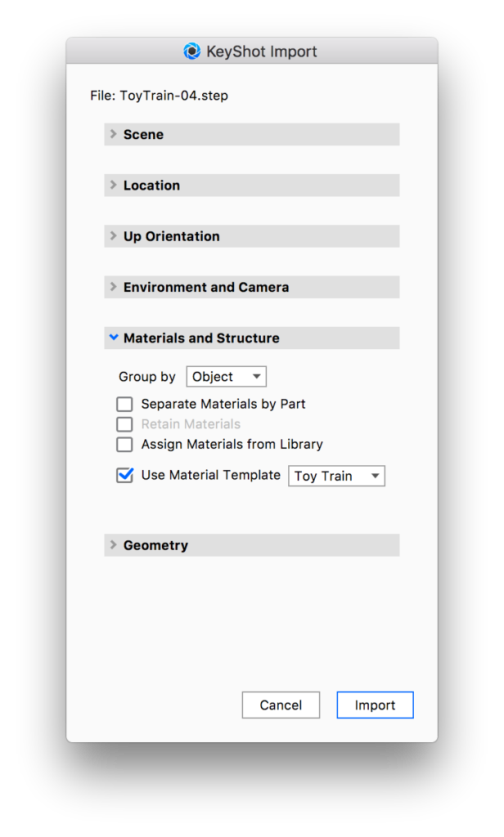
Expand the Materials and Structure section to reveal the Use material template checkbox.
Enable this setting and select the desired template from the list.
Click Import to complete the import.