Models Tab

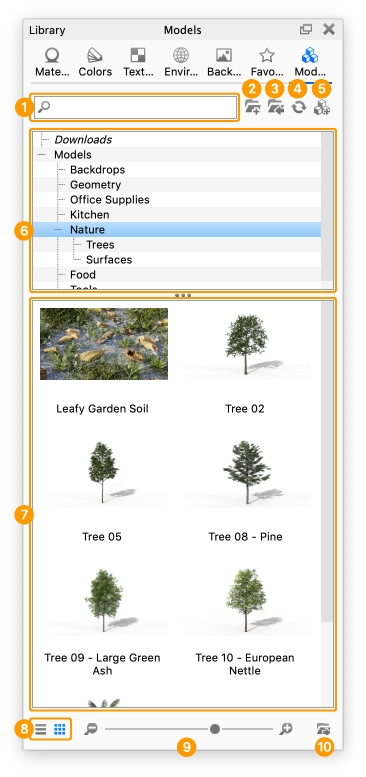
The Models tab located in the Library window contains a selection of models you can use to add context to your scene, as well as whole scenes in which you can display your products.

    Search

    Type in any keyword to search for a model by name.
  1. Add Folder

    Click this button to add custom folders for your model library.
  2. Import

    import a scene to your library
  3. Refresh

    Refresh model list if any changes were made.
  4. Add

    Add current scene to the library
  5. Folder Tree

    Contains the folder structure of the model folders.
  6. Model list

    The list contains all the models that match the current filtering (folder and search)
  7. List/Thumbnail Toggle

    Switch displaying the model thumbnails in a list or grid view.
  8. Zoom Slider

    Slide to change the size of the thumbnails. You can also use   to change in steps.
  9. Export

    Export a model as KSP.

Visit the Library Models page for more information.