Pattern Tool
The Pattern Tool allows you to create instances of models instead of duplicates, which increases speed and decreases file size.
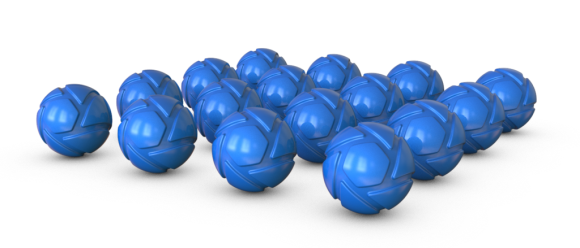
Right-click a Model, Group or Part in the Scene Tree, and select Make Pattern to open the Pattern Tool dialog.
Linear Pattern
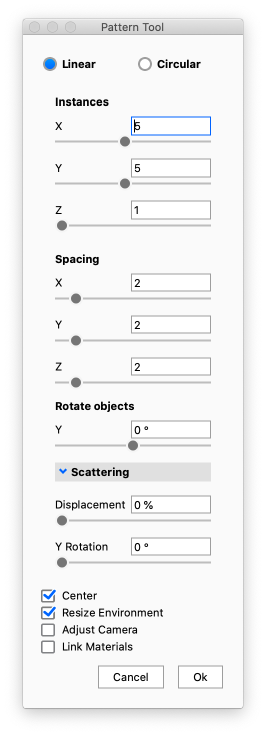
These are the linear pattern settings.
|
InstancesThis allows you to set how many instances are created along the X, Y, and Z axes. SpacingThis allows you to set the spacing of the instances for X, Y, and Z. Rotate ObjectsInstances can be rotated along the Y of each local access to dynamically position them in the scene. Use this field to choose how far instances will be rotated along the Y axis. ScatteringUse this to randomly place patterned objects. Useful for scenes where a more random distribution of objects is desired.
Center
Resize Environment
Adjust Camera
Link Materials
|
Circular Pattern
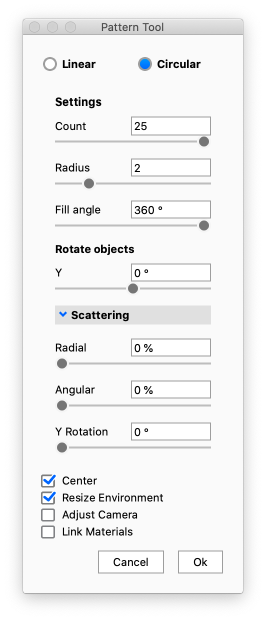
These are the circular pattern settings.
|
Settings
Rotate ObjectsInstances can be rotated along the Y of each local access to dynamically position them in the scene. Use this field to choose how far instances will be rotated along the Y axis. ScatteringUse this to randomly place patterned objects. Useful for scenes where a more random distribution of objects is desired.
|
Center
Centers the pattern to the scene.
Resize Environment
Automatically increase the environment size to accommodate all instances.
Adjust Camera
Enable this to have the camera automatically shift to include all instance within the field of view.
Link Materials
Enable this to link the materials of the pattern object.
Editing Patterns
Your pattern can be edited, as long as you don’t change the hierarchy if the parts/groups in the Scene Tree. Simply right-click on a patterned object and select Edit Pattern to open the Pattern window where you can make changes to the pattern.