Set Camera Target
With the Set Camera Target tool you can select the point to where the camera is oriented.
When you have selected a camera target, Tumble will revolve the camera around this point and Dolly will make the camera move closer/farther away from it – even if the camera has been panned, so the target is no longer in the center of the Real-time View.
You can set the camera target in two ways:
- Via the Tool
- Via the Real-time View Context menu.
How to Set Camera Target with the Tool
- Launch the
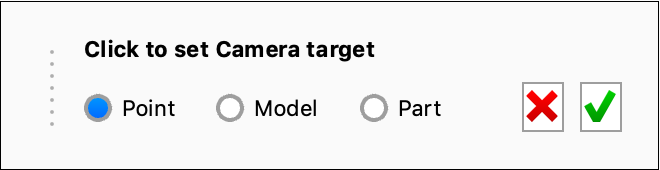
 Set Camera Target tool in the Tools section of the Ribbon. This will bring out a widget, where you can choose what you want as your camera target:
 - Select what to target.
- Point: This will make the clicked point on the surface, the camera target.
- Model: This will make the center of the clicked model, the camera target – note that all groups in the Scene Tree are considered models, but Set Camera Target will use the top level model.
- Part: This will make the center of the clicked part, the camera target.
- Click in the scene to set the camera target.
- When you are satisfied with the results, close the tool by clicking the green check mark
 . If you want to revert to the camera target from before the tool was launched, clock the red
  .
.
Set Camera Target via the Real-time View Context Menu
- Right-click an object.
- Select Select Camera Target this will make the clicked point on the surface the camera target.