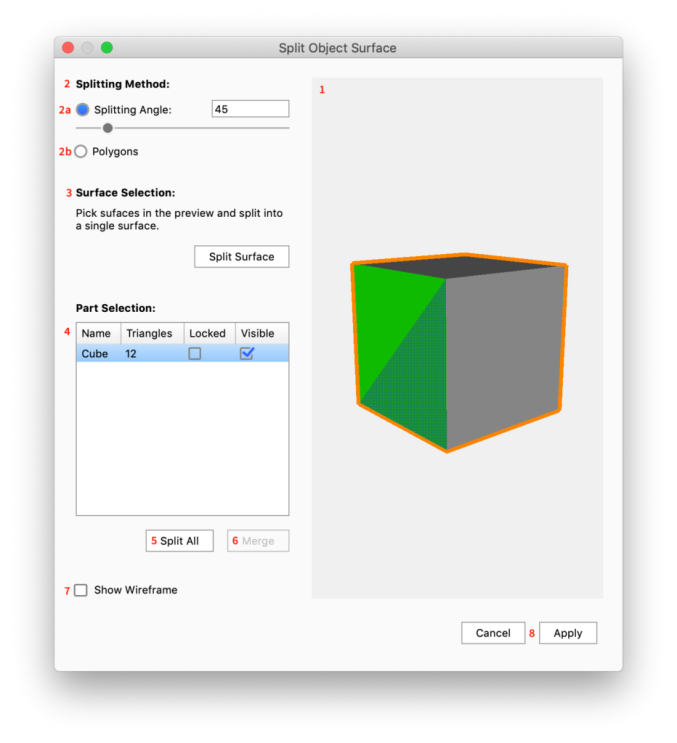
Split Object Surface
Use the Split Object Surfaces option if you would like to split specific polygons from a single part. This is useful if you would like to apply separate materials to a single part, or when parts are modeled together and you would like to work with them separately.
How to Split Object Surfaces
- Select a part and launch the
 Split Object Surfaces tool, via the Tools section in the Ribbon, or via the context menu in the Real-time View
 - Choose Splitting Method – By Splitting Angle or by Polygons
- Now you can choose to split out either a single surface via the Marquee, Brush andSurface Selection or all surfaces with the Part Selection.
- Marquee selection:
- Hold Shift+LMB and drag to use the marquee selection.
- Click Split Surface to split out the selected area into a separate surface. Now the surface appears in the list of parts.
- Brush selection:
- Hold down Alt+LMB to use the brush selection and “paint” your selection onto the model.
- Click Split Surface to split out the selected area into a separate surface. Now the surface appears in the list of parts.
- Surface selection:
- Click on the surface you want to split out in the preview. This will be highlighted in green. Holding Ctrl/Cmd while picking surfaces will let you pick multiple.
- Click Split Surface to split out the selected area into a separate surface. Now the surface appears in the list of parts.
- Select the part in the list and click the name again, to rename the surface.
- Part selection:
- Select the part to split (will be shown with an orange outline in the preview)
- Click Split all – depending on the splitting method, a number of new surfaces will now appear in the list.
- Marquee selection:
- If you have split something that should not be split, but otherwise are happy with the surfaces you have created, you can merge the relevant surfaces again.
- select the relevant surfaces in the list, Holding Shift while selecting will select multiple.
- click Merge
Tool UI
|
|
|