Split Separate Objects
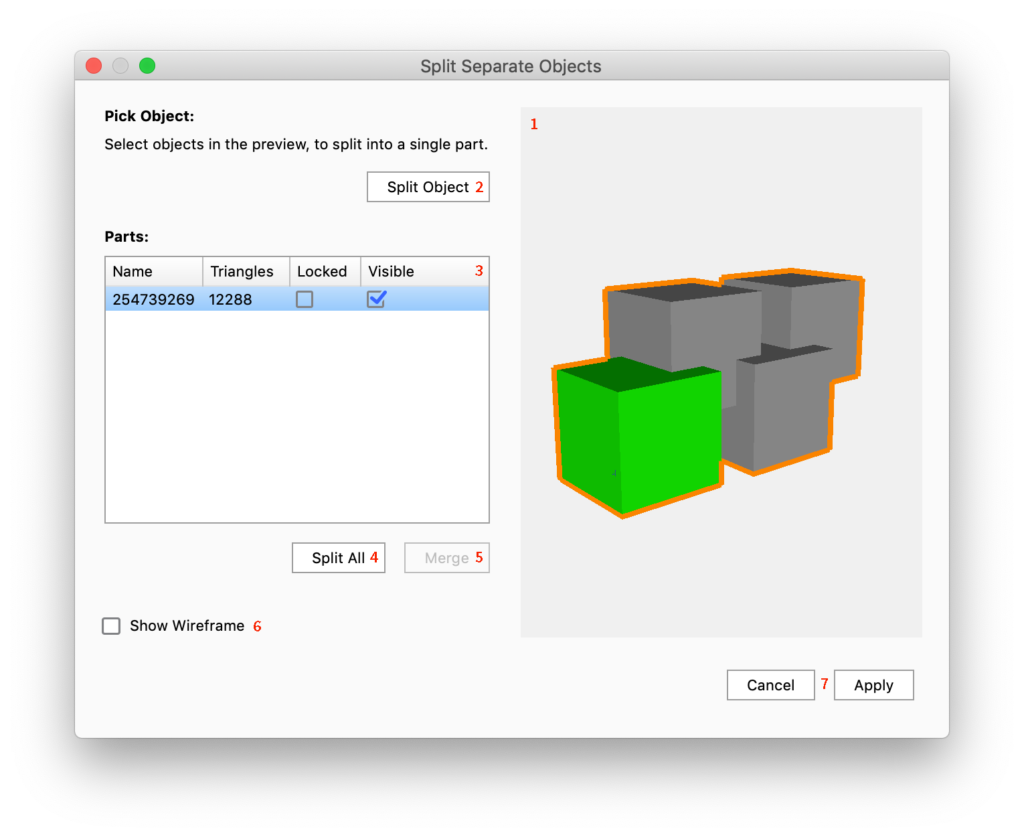
The Split Separate Objects Tool enables you to split up objects that were originally modeled separately, but inside KeyShot Studio are perceived as one.
How to Split Separate objects
- Select a part and launch the
 Split Separate Objects tool, via the Tools section in the Ribbon, or via the context menu in the Real-time View
 - You can either split one object out from the part or split the part into all the original parts it was modeled as.
- Split single object:
- Select the part you want to split out as a separate object by clicking in the preview – your selection will be highlighted in green. Hold Ctrl/Cmd while selecting to select multiple parts that will be split out in one object.
- Click Split Object – now you will see one more part in the Parts list.
- Select the part in the list and click the name again, to rename the part.
- Split all:
- Select the part to split (will be shown with an orange outline in the preview)
- Click Split all – depending on the splitting method, a number of new surfaces will now appear in the list.
- Select a part in the list and click the name again, to rename the part.
- Split single object:
Tool UI
|
|
|