Studio Switch Events
The Studio Switch events enable you to change the active studio during an animation. This means that you easily can change the active Environment, Image Style, Model Set etc. without any post process video editing.
How to Add a Studio Switch Event
- Right-click the studio you want to switch from.
- Select Add Studio Switch Event
- In the fly-out menu Select the studio you want to switch to.
Now you will see the switch event in the Animation timeline, where a purple dot indicates when the studios will be switched. You can drag the purple dot to adjust the time or you can control it precisely from the animation properties.
Properties
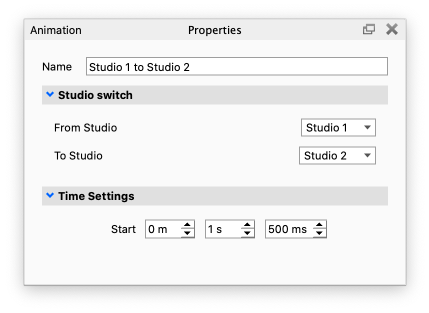
|
Name This is the name the switch event will have in the animation timeline. This can also be changed by right-clicking the node and selecting Rename. Studio SwitchFrom Studio Controls the studio that is active before the switch. To studio set s the studio that will be activated in the switch. |
Time settings
The time settings enable you to set the exact time for the switch.
Note
A studio switch will only work when the From studio is active.
Warning
A studio switch will only work when the From studio is active.