Color Composite
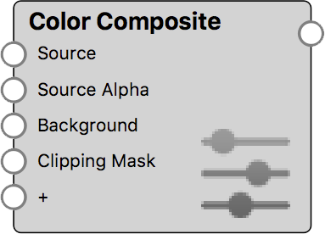
Color Composite nodes are commonly used create Opacity masks from multiple textures or to add gradients to textures.
|
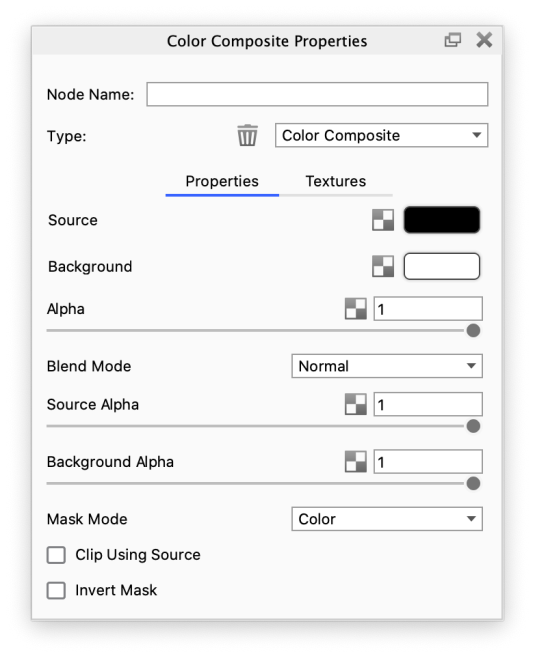
Alpha This defines the transparency of the composited result. The transparency can be set by either using the slider or applying a texture. The behavior is very similar to the Clipping Mask parameter, but the Clipping Mask has additional controls. Blend ModeThis defines how the Source and Background layers are blended together. |
This is the first and top layer of the texture composite. If the Source texture has alpha (transparency), then this will be propagated to the composite.
Source AlphaThis defines the transparency of the Source layer. The transparency can be set by either using the slider or applying a texture.
BackgroundThis is the second and bottom layer of the texture composite. If the Background texture has alpha (transparency), then this will be propagated to the composite.
Background AlphaThis defines the transparency of the Background layer. The transparency can be set by either using the slider or applying a texture.
Mask ModeThe following Mask Modes can be chosen: Red, Green, Blue, Alpha, Color.
The Red, Green and Blue options refer to the individual RGB channels of the Clipping Mask texture.
If the Source texture has alpha (transparency), then this will be used to mask out the composite. The composited result will only show where the Source texture is non-transparent.
Invert Mask
Use this to invert the Clipping Mask texture.
Color Composite Example with Label OpacityThe examples below show how a Color Composite node can be used to create interesting Opacity masks for Label materials.
|
|
|
|
|
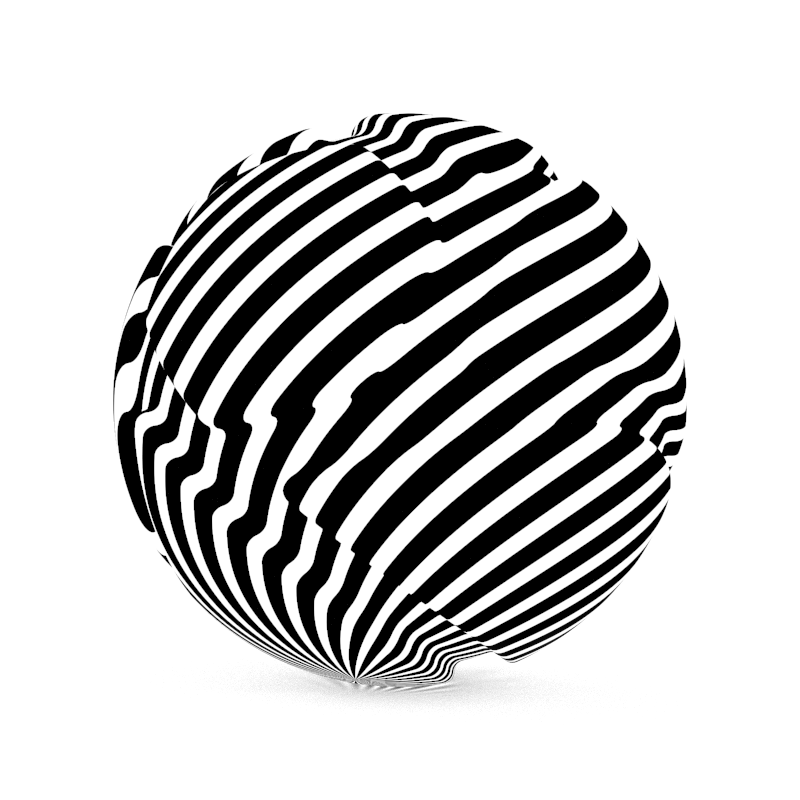
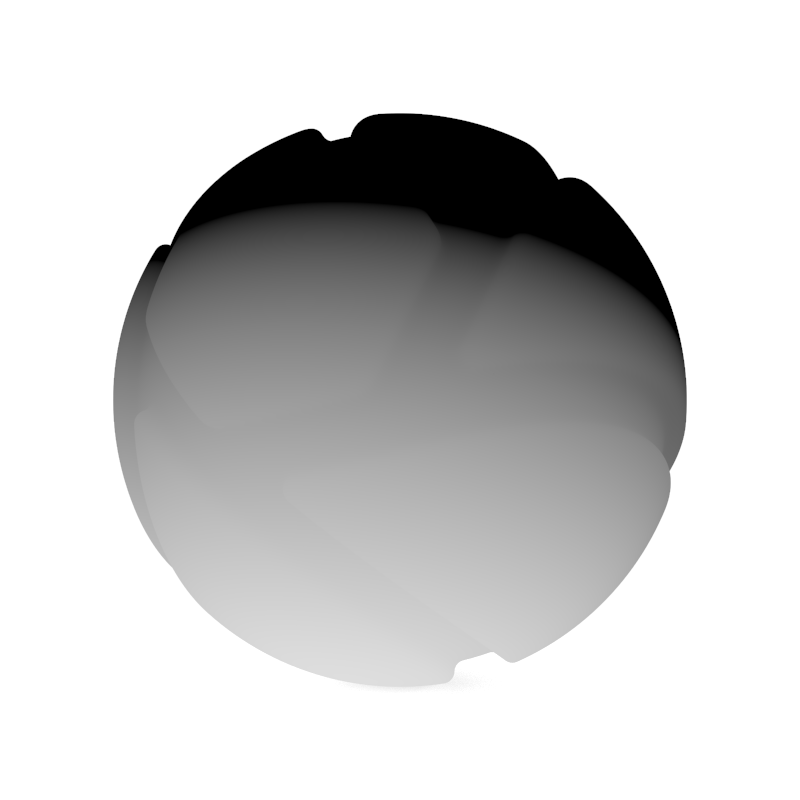
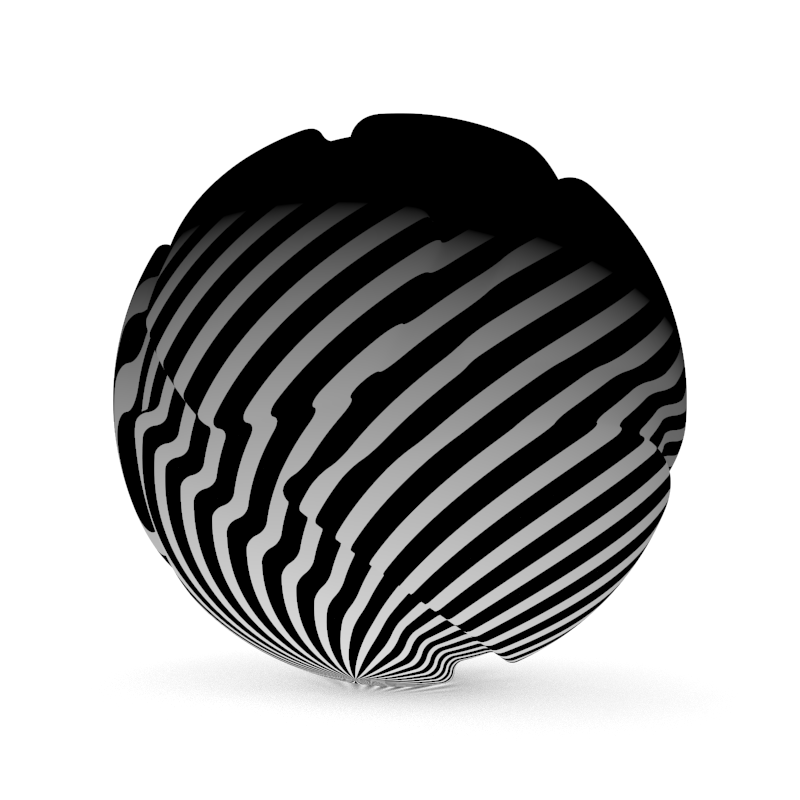
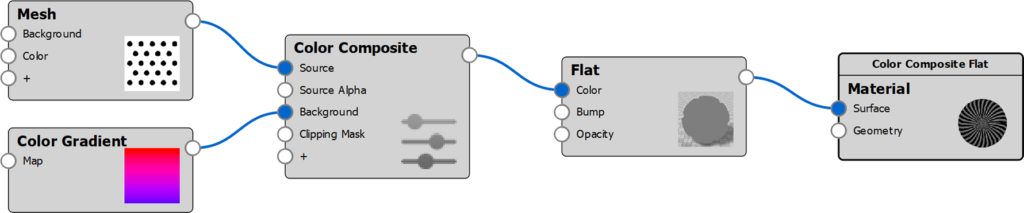
Applying the Label Mask
This Color Composite builds on the material graph above, but the material node has been altered.
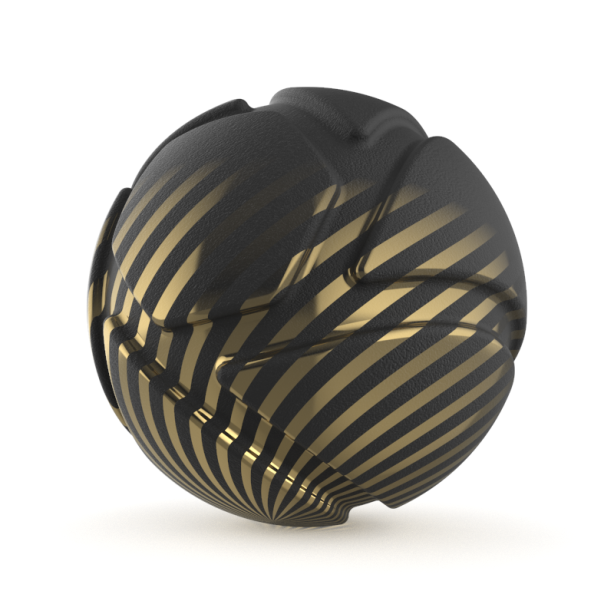
|
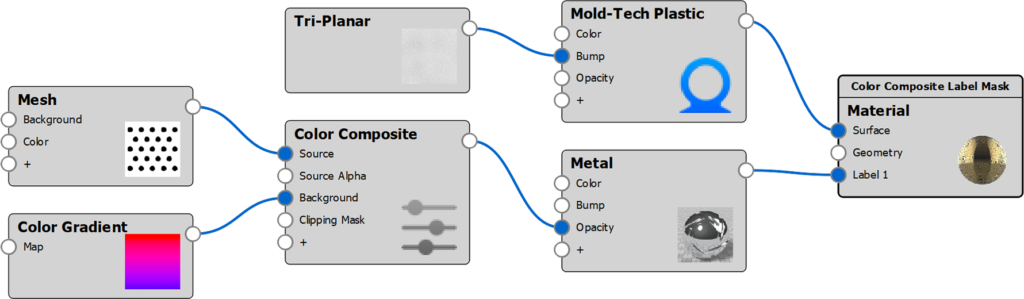
|
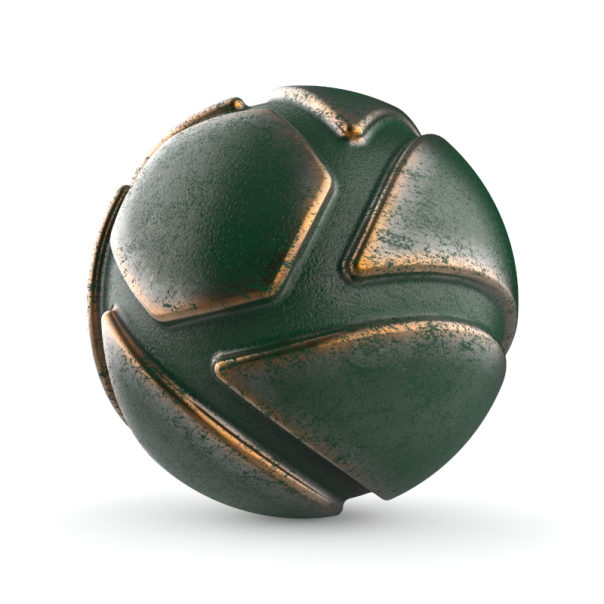
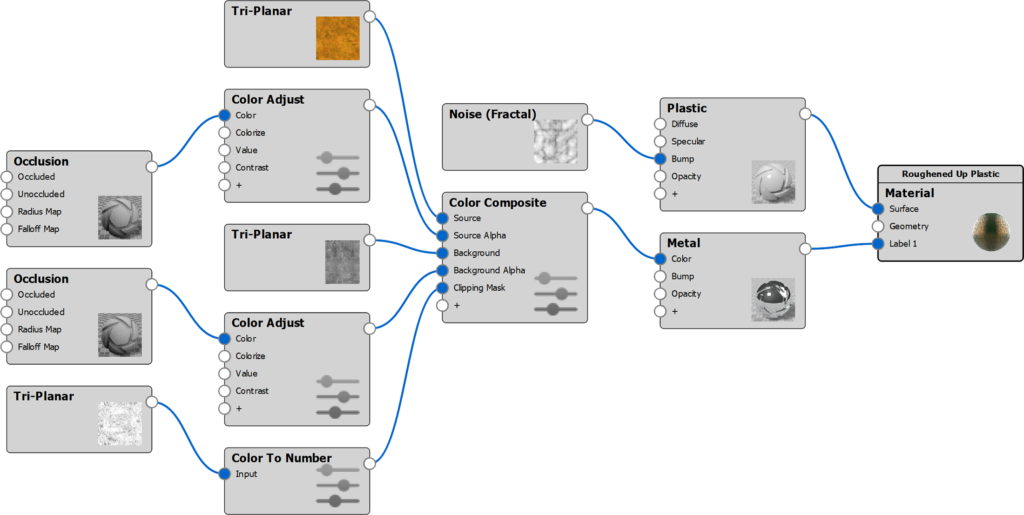
Color Composite Example with Complex Label
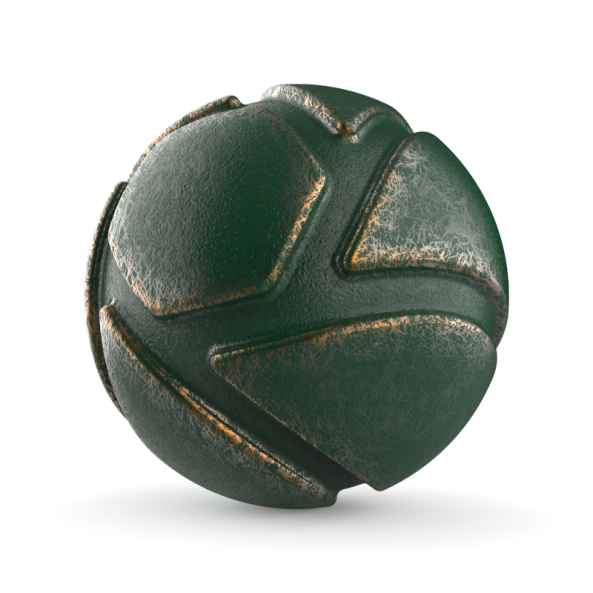
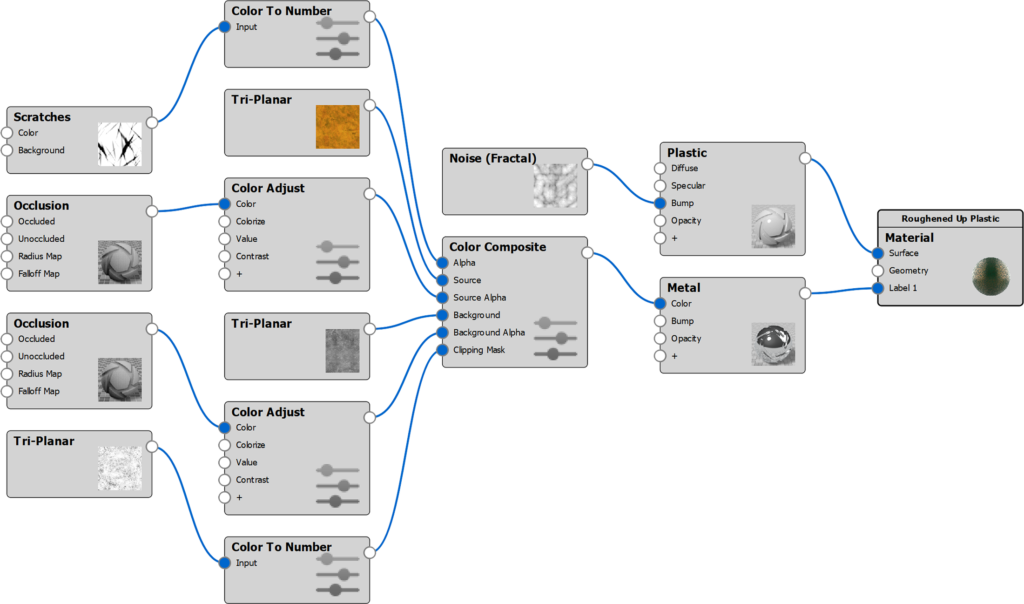
The examples below show how a Color Composite node can be used to create a complex Label material.
Source Layer
|
An Occlusion texture drives the transparency of the Source texture The Background Alpha is set to 0. |
|

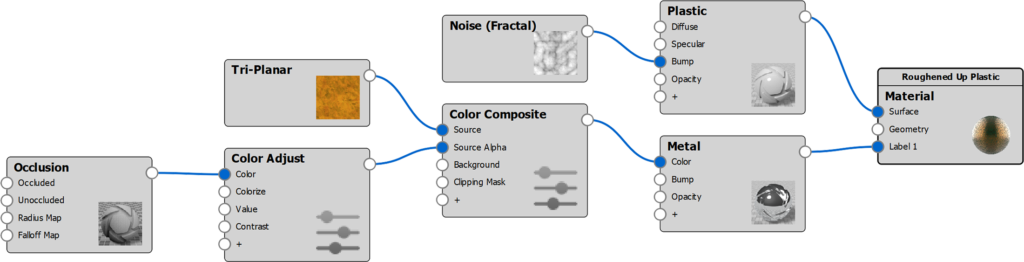
Adding the Background Layer
|
|
|

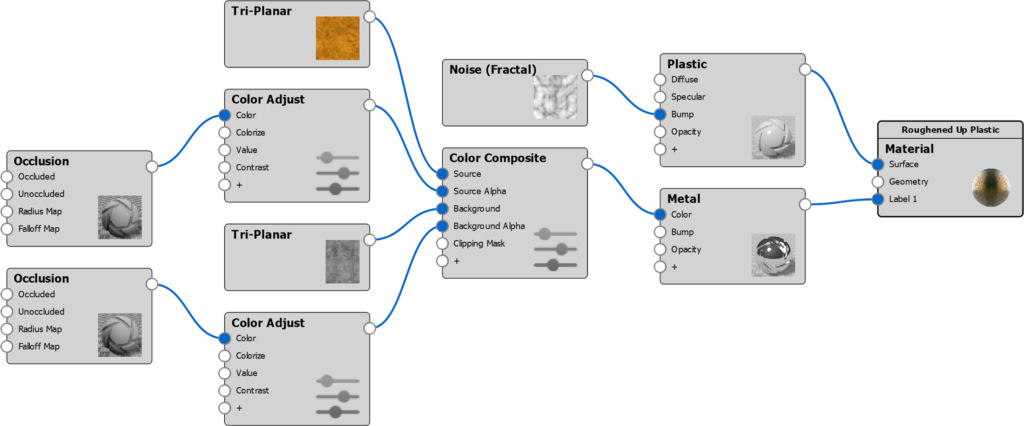
Applying the Clipping Mask
|
|
|
Applying the Alpha
|
|
|