Configurator Output
The Configurator option in the Render dialog offers following output options, based on the configuration set up with the Configurator Wizard:
- Images: Render a series of still images and their accompanying metadata of optional Model, Material, and Studio Variations that were setup via the Configurator Wizard.
- Web Configurator: If you have the KeyShot Studio Web add-on you will also be able to output for the web. Either in the form of a webpage or an iBook widget. The webpage/iBook widget will have the same UI as Presentation mode/KeyShot Viewer in terms of selecting model, material and studio – but it will not offer camera movement, as it is based on still images.
Images
|
|
Include Images
Name
|
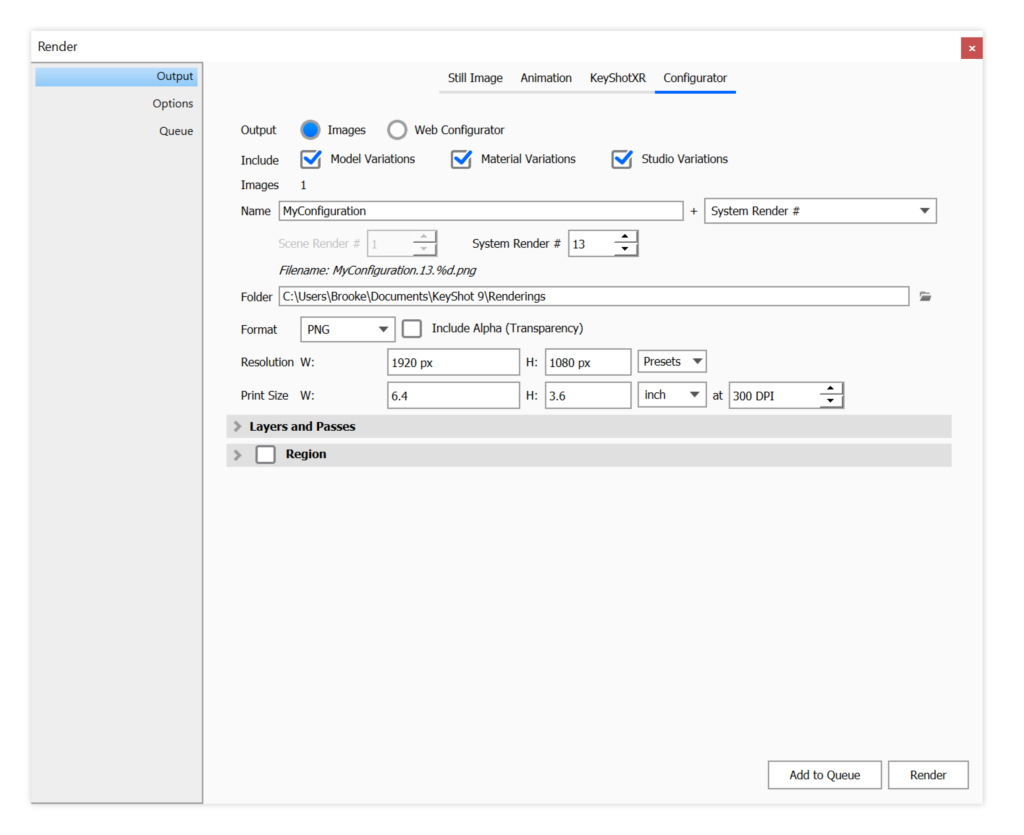
Folder
Choose where the render will be saved. Unless a specific folder is chosen, it will be saved in your default rendering-folder.
Format
Choose from JPG, TIF, EXR, TIF 32 Bit, PNG, PSD, and PSD 32 bit. All formats other than JPG can include an alpha channel.
Resolution
Set the resolution of the render. Type it in or select from the presets.
Print Size
If final output is for print quality, enter in the dimensions of the print size as well as the desired DPI. After size has been set, the resolution will update with the correct dimensions.
Web Configurations
|
|
Create iBooks Widget Update layout and thumbnails of existing Web Configurator |
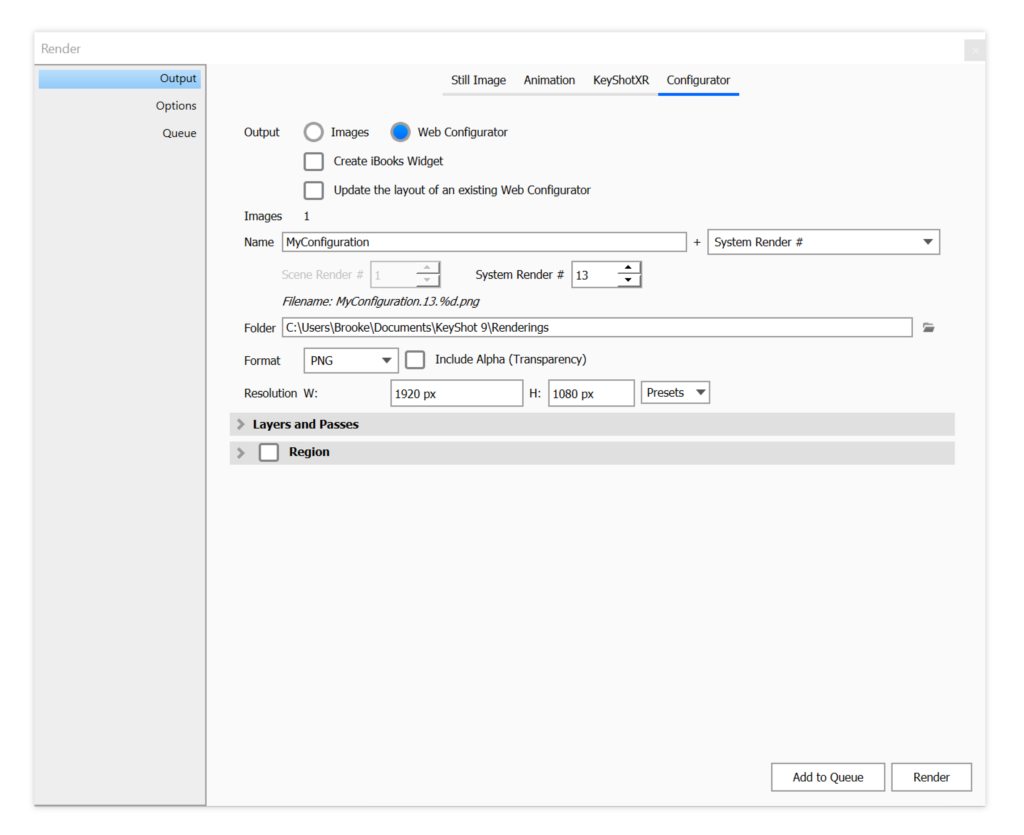
Note
The Update option will not detect changes to Materials, Model Sets or the choices within the configurator. If you have made changes to any of these, you need to render everything again.
Images
This value will display the total number of images the configurator needs to work.
Name
Select the Prefix and Name Template that fits your needs. An incremented postfix will be added to the image names to ensure that there won’t be naming conflicts.
If the Template includes either the System or Scene Revision # you can reset them here. The Filename shows the full render name generated from the Prefix and the active Name Template + incremented postfix. Learn More about Name Templates. This name will be used for both images, and the folder containing all the files. If you have selected to also output the iBooks Widget this will be created in its own folder, which will have .wdgt added to the name.
Folder
Choose where a folder containing all images and files for either the webpage or the iBook will be saved. Unless a specific folder is chosen, it will be created in your default rendering-folder.
Format
Choose from JPG, TIF, EXR, TIF 32 Bit, PNG, PSD, and PSD 32 bit. All formats other than JPG can include an alpha channel.
Resolution
Set the resolution of the render. Type it in or select from the presets.