HDRI Editor Pins
Pins are light sources that can be placed into the HDRI to further enhance the image file, and give the desired lighting effect on the object scene.
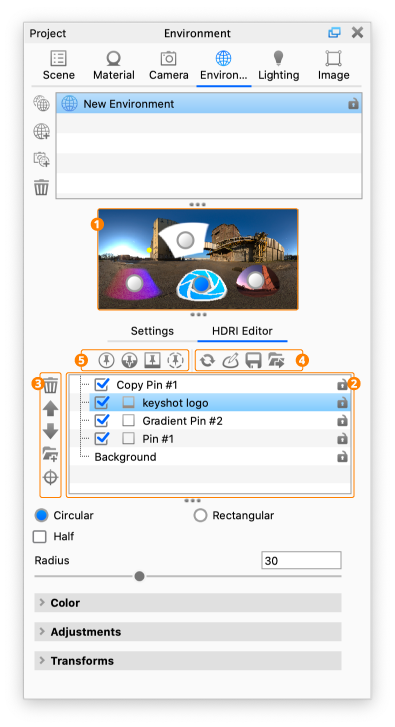
1. HDRI Preview
The HDRI Preview enables you to select and adjust positions of the individual pins. Right-click on a pin will bring up a context menu, where you have easy access to the options for that pin.
2. Pin List
Contains all the pins created in the HDRI editor. You can enable or disable a pin by clicking the checkbox to the left of its name. You can rename a pin by double clicking its name. Right-click pins for options to delete or duplicate. The active pin being edited will be highlighted blue in the list and will be marked by a blue dot in the preview.
3. Pin Options
Add Pin
To Add a pin click one of the options above the Pin List, these include Add Pin, Add Gradient Pin, Add Image Pin, and Add Copy Pin. The Pin types will be described in the following section on this page.
The new pin will be displayed in the Pin List as well as the HDRI preview. To make a pin active for editing, select it in the Pin List or click on the pin handle in the preview window. Drag the pins by their handles to position them. The “Add Highlight”-pin is explained below in the “Set Highlight” section.
You can also copy a pin from one environment to another. Just select the pin press Ctrl+C/Cmd+C, go the the destination environment, click in the HDRI editor and press Cmd+V/Cmd+V.
Delete Pin
Click on the trash can icon to delete the active pin.
Move Pin Up/Down
Click on the arrows to change the pin order in the pin list. The order is important as it will display and layer pins from the top down.
Pin Folders
Use pin folders to organize all your pins in your HDRI. Click on the “Add Folder” icon to add a folder to the list and drag pins into the folder.
Set Highlight
With the Set Highlight option you can create your pin by selecting a region on the model you want to highlight. Simply CTRL+Click/CMD+Click in the Real Time View anywhere on the surface of the model and a pin will be generated facing that point on the surface. When finished, click “Done.” Pins added this way can be edited as normal.
To set an existing highlight-click onto “Set Highlight”, and then select an existing pin in the editor. Click on the object to set the highlight using the selected pin, and use your left mouse button to drag it into the right position.
4. Editor Options
 Generate Full Resolution HDRI
While you are editing the pins the environment is using a “fast preview” mode, where you don’t see the full effect of the changes- click to force the environment to be displayed in the full resolution.
Tip
If the environment has not been generated in full resolution, it will be indicated in the top right corner of the Real-time View  this indicator can also be clicked to force the environment to be displayed in the full resolution.
HDRI Editor Canvas
This will launch the HDRI editor window, where you can edit the pins on a bigger canvas.
Save Environment
Here you can save your environment to the Library. Note that it is only the HDRI settings that are saved with the environment, not the general Environment Settings as these are scene specific.
Export Environment
This enables you to export a .HDR/.EXR/.HDZ with your environment.
5. Pin Types
The environment is made up from a background and a number of pins. The background is described in detail here: HDRI Editor Background