KeyShotXR Output
The KeyShotXR output option is available if the KeyShotWeb Add-on is installed. It provides setup and output of a KeyShotXR as well as options for render layers and render passes.
Learn more about KeyShot XR.
Most of the parameters set in the KeyShotXR Wizard can be edited in the KeyShotXR Render Output options. Additionally, there are other options for file format, file size, and iBooks output for viewing on iOS devices. There are also Advanced options for KeyShotXR control and customization.
Output Options
|
|
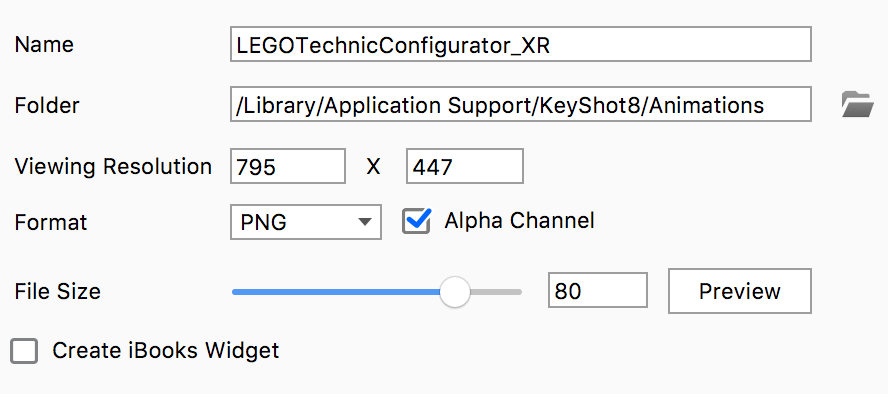
Name Select the Prefix and Name Template that fits your needs. If the Template includes either the System or Scene Revision # you can reset them here. The Filename shows the full render name generated from the Prefix and the active Name Template. Learn More about Name Templates. Folder Viewing Resolution |
Format
Choose JPEG or PNG for the frames. Check Alpha if you want transparency on .png images.
File Size
Selecting the “Preview” button will render one frame from the KeyShotXR and has a compression slider that allows adjustments to the quality of the image, and updates in real-time. Be aware that a larger file size could increase the time to load the KeyShotXR in the browser.
KeyShotXR Control
Rotation Control
|
|
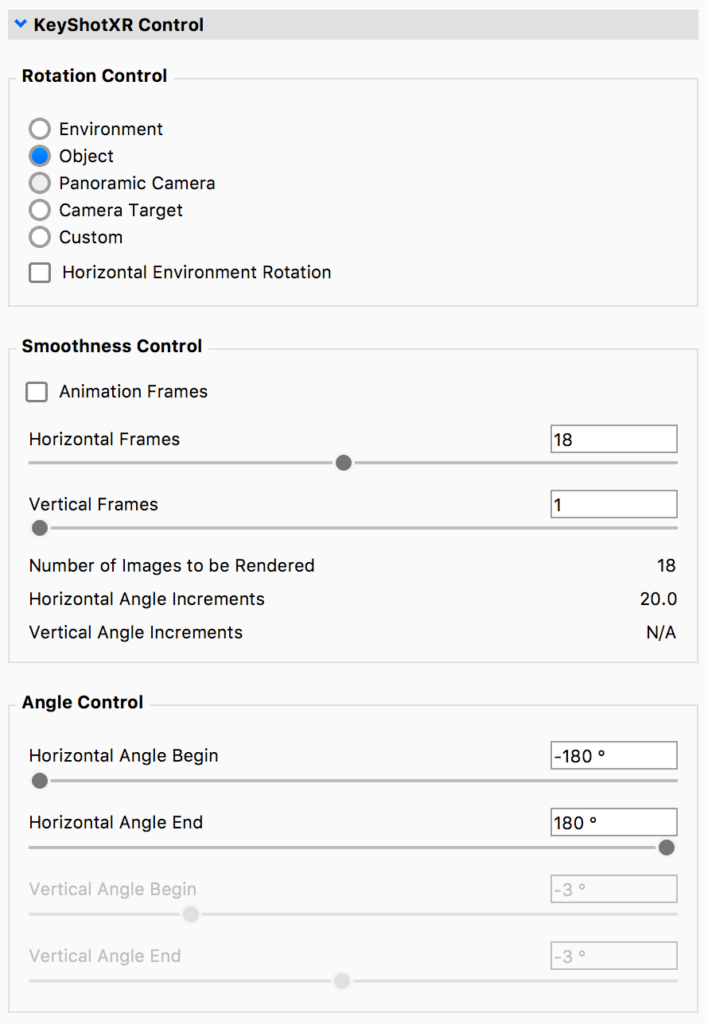
Environment Object Camera Look At Custom Horizontal Environment Rotation Smoothness ControlAnimation Frames
Horizontal Frames
Vertical Frames
Number of Images to be Rendered
Horizontal/Vertical Angle Increments
|
Angle Control
This is equal to the custom setting of the KeyShotXR Mode in the wizard and controls possible viewing angles of KeyShotXR. If you want to use presets such as Turntable, Spherical, Hemispherical or Tumble use the wizard.
Horizontal
This controls the beginning and end of the rotation on the “X” plane.
Vertical
This controls the beginning and end of the rotation on the “Y” plane.
Advanced
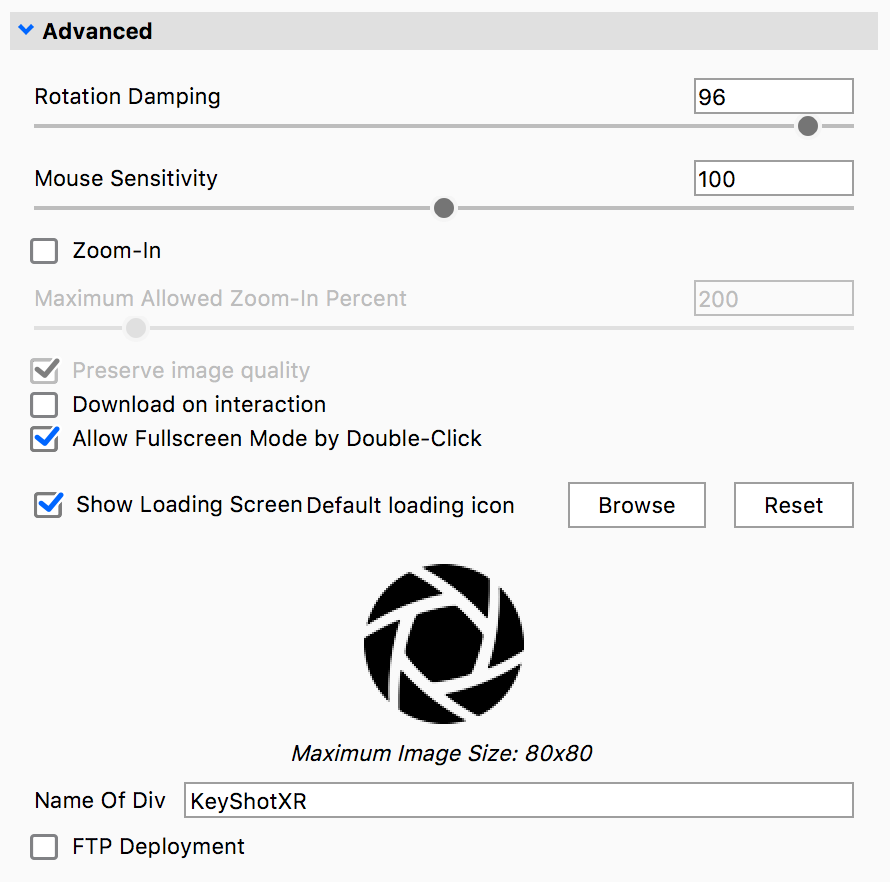
Advanced settings for KeyShotXR are located in a drop-down menu on the same window as the custom settings. This menu controls how your KeyShotXR interacts in the web browser.
|
|
Rotation Damping
Mouse Sensitivity
Zoom-In
Preserve Image Quality
Download on interaction
|
Allow Fullscreen Mode By Double-Click
Double-clicking the left mouse button will enter full-screen mode.
Show Loading Icon
Enabling this will allow the loading icon to be shown when the KeyShotXR is loading in the browser. This image can be changed by selecting “Browse” and browsing to the image file you prefer.
Name of Div
This defines the KeyShotXR section in the HTML code.
Generate Embeddable HTML Code
This will give you the code necessary for implementing your KeyShotXR in a website using the iframe tag.
Layers and Passes
See Layers and Passes section.