Cloud Rendering
Credits
Cloud Rendering does not require a separate license, instead renderings are paid for via Credits. You can buy Credits through your Account page. This also means, that you need to be signed in to your account inside KeyShot Studio.
Buying more Credits
If you are running low or have run out of Credits, you can buy more via the Wallet section on your Account page.
Simply go to account.keyshot.com and click on Wallet in the left side menu or, open your Avatar-Menu inside the Render Queue and click Buy More.
How it works
Cloud Rendering shares a lot of workflows with Network Rendering. The main difference being, that Cloud Rendering allows you to send your render job into the cloud instead of distributing it between your local machines. This allows you to free up your local hardware to keep working on your projects.
Note
As opposed to Network Rendering, Cloud Rendering does not require you to go through an installation or setup process. When you send a job, the setup will happen automatically in the cloud. Every job has its own little Manager/Worker setup, ensuring that you never have to wait for one job to be finished before the next is started.
You can see and follow the process of your job in the Render Queue. 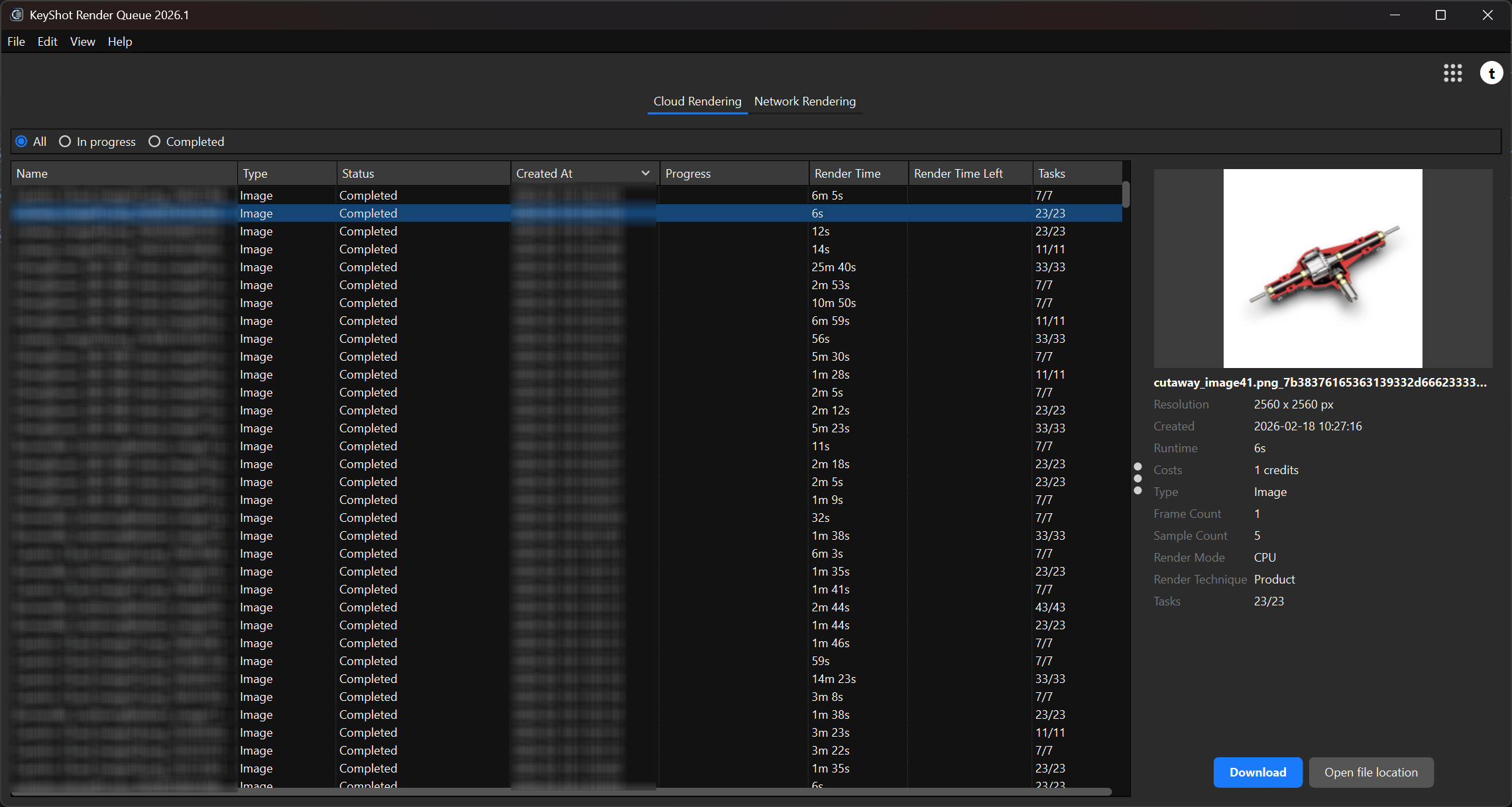
Sending Jobs to Cloud Rendering is as easy as starting any Render in KeyShot Studio.
When your project is ready, you simply have to:
-
Click on Render to open the Render Dialog
-
In the bottom right corner choose Cloud Rendering from the drop-down
-
Click Render in Cloud
Note
Maximum Samples is currently the only Render Quality setting supported in Cloud Rendering. This is because the sample count in your scene directly impacts the Credit cost. You will be able to see the Credits adjusting when you turn your sample count up or down. Learn more about Credit Pricing and Cost.
Read more about Cloud Rendering here or watch our Getting Started video below.