Render Queue
 KeyShot Render Queue allows you to interact with Cloud Rendering, your Network Rendering manager, workers, and view/administrate jobs in the queue.
When your computer is connected to a Manager you can find the Render Queue icon in the Task menu (Windows) or the Menu bar (macOS)
Main Menu
In the Main menu you have following options:
File
- Connection Settings By default your computer will connect via auto-detect. But you can also specify the manager you want to connect to in the Connection settings.
- Hide If you don’t want to see the Render Queue, you can hide it. You can always bring the Render Queue back via the Render Queueicon in the Task menu (Windows) or the Menu bar (macOS)
- Quit Close the Render Queue. This will not quit the manager/worker services.
Edit
- Download Download job.
- Move up/down Reorder the queued jobs
- Delete Delete the selected job(s).
Help
- About Displays version information.
- License Information Will display license information from the manager you are connected to.
- Manual Links to this manual.
- Check for updates Check if there are updates for your Network rendering installation.
- Auto-update Keep the installation up to date.
- Log Debug Mode If you are logged in as an admin, you can turn on Log Debug Mode. This will increase the log level to Trace for both the manager and connected workers. The log level will remain increased until the manager is restarted or the Log Debug Mode is turned off by an admin. When the mode is active, all Render Queueswill show a message in the top of the window, and the general performance may be decreased.
Render Queue Window
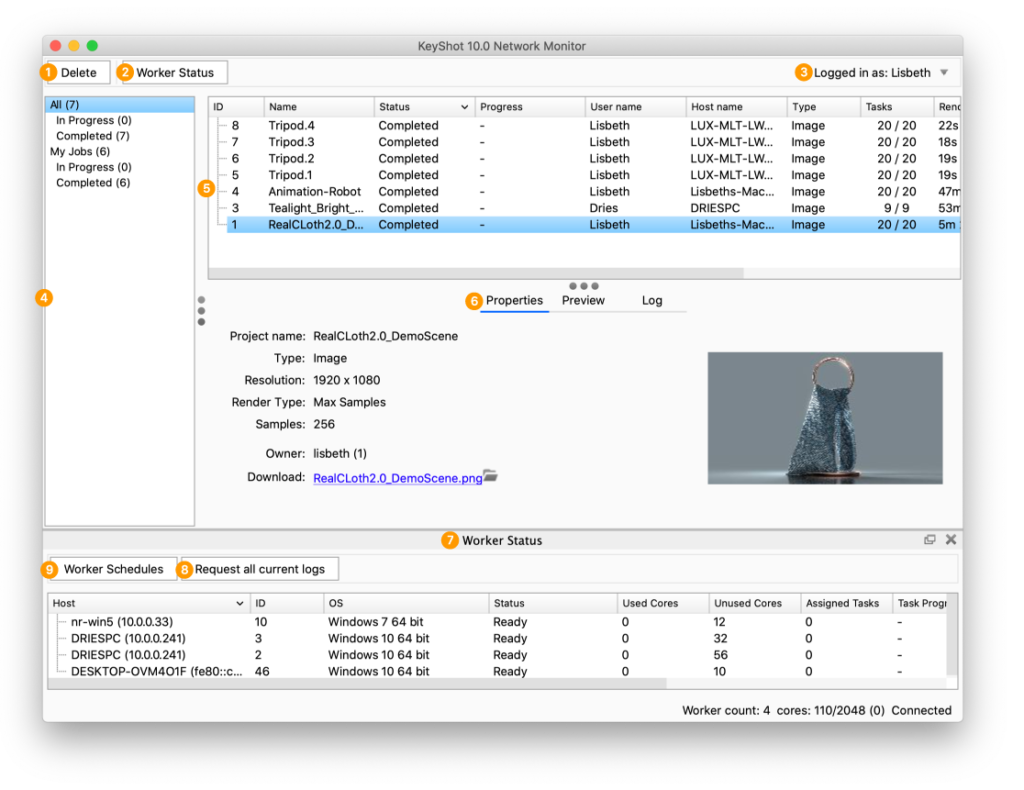
- Delete Delete your render jobs. Administrators may delete any job. Visit the Set up Users page for more information about user privileges.
- Worker Status Show/Hide Worker Status panel (7).
- Login account Displays the logged in user’s name. Visit the Log In/Out page for more information.
- Jobs filter Select My Jobs or All from the sidebar area. You may also filter either of these by jobs that are In Progress or Completed.
- Render job queue Lists all render jobs submitted to the network. Visit the Jobs page for more information about handling jobs.
For the best performance we recommend clearing the queue regularly. Learn more - Details about the selected job
- Properties Displays render job name, type of render, and owner. As well as a small thumbnail of what is rendering/rendered.
- Preview Displays image rendering progress.
- Log Lists all events related to the job.
- Worker Status Shows connected workers, available/allowed cores per worker, and the assigned regions. Possible status are shown below:
- Ready The worker is connected and is ready to render.
- Updating Currently updating software; not available for rendering.
- Receiving Currently receiving job data for the task to render.
- Rendering Currently rendering.
- Sending Results Sending results back to the manager.
- Failed If the worker fails three times it will be made inactive, waiting for an admin to take a look at the situation.
- Worker Schedules Show/Hide worker schedules toggle. Worker schedules determine when a worker is active or inactive.
Visit the Worker Schedules page for more information. - Request all current logs Download a ZIP file containing logs for all connected workers. You can also right-click a worker to access the logs for that specific computer. Visit the Get Logs page for more information.